Featured post

Troubleshooting Guide on POPCUSTOMS’ Design Maker Usage

We’re using web 3D technology which has some requirements on users’ computers. Here is the troubleshooting guide:

1, Please make sure you’re using the latest Google Chrome browser. If it’s the latest one, you won’t see the warning below.

If an upgrade doesn’t work, read on.

2, Please check the other mockups of the product and see if they have the same problem, such as designs not showing up or delays.

If the other mockups work, please report to us with the product URL.

3, Please check the other products and see if they have the same problem.

If it works for the other products, please report to us with the troublesome product URL.

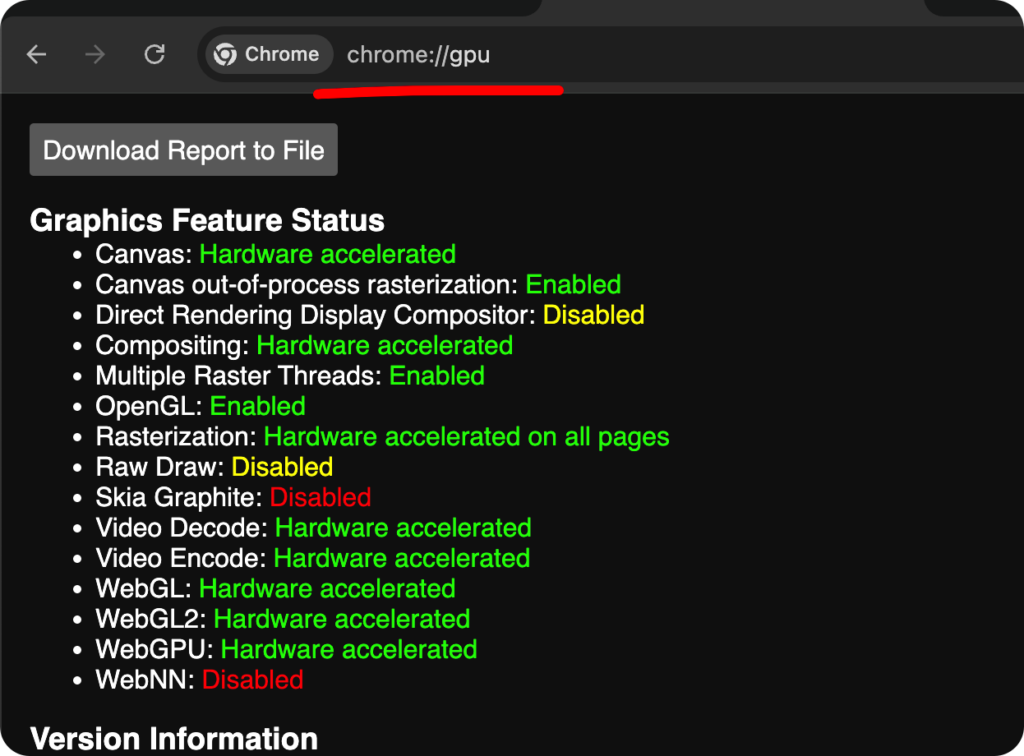
4, Please visit chrome://gpu, and make sure “Rasterization: Hardware accelerated on all pages” and “WebGL: Hardware accelerated”, it’d be better if “WebGL2: Hardware accelerated”. To enable “Rasterization”, please visit “chrome://flags/”, enable “GPU rasterization” and restart the browser.

This is an example of settings that will work with our design maker,
If it’s still not working, please try popcustoms.com with other devices, even an iPad.

Hope you understand.
Featured post

💥😆Exclusive New Arrivals: Get More Orders!

Get ready to Attract More Customers & Get More Orders with POPCUSTOMS new arrivals!

We’re excited to announce our latest collection of personalized and custom products. From Stainless Steel Flask and Custom Notebooks to Trendy Jackets and Hot-Sell Phone Cases, our new items are sure to captivate your customers and keep them coming back for more.
Stand out from the competition and elevate your store collection with these unique and fashionable pieces. Explore our website now to discover the latest trends!

🫢There’s more to come—get ready for Q3 and Q4 sales season!

Thank you for choosing us as your trusted partner in business!

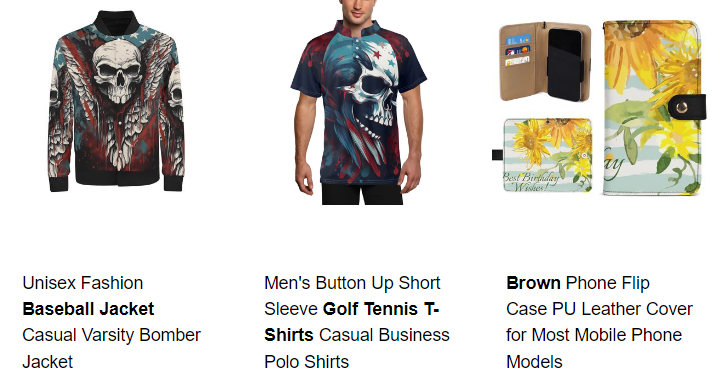
Men’s Button Up Short Sleeve Golf Tennis T-Shirts Casual Business Polo Shirts
Unisex Fashion Baseball Jacket Casual Varsity Bomber Jacket
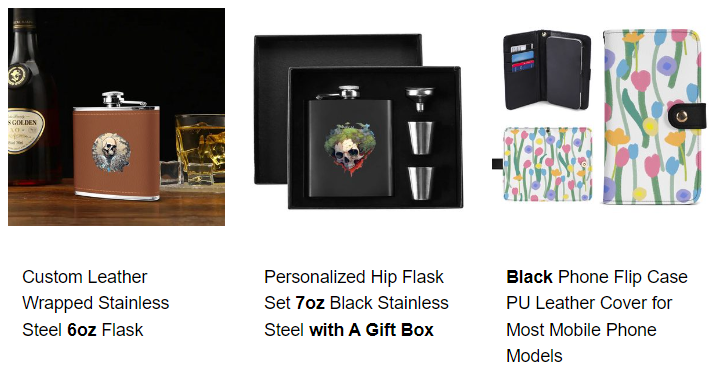
Custom Leather Wrapped Stainless Steel 6oz Flask
Personalized Hip Flask Set 7oz Black Stainless Steel with A Gift Box
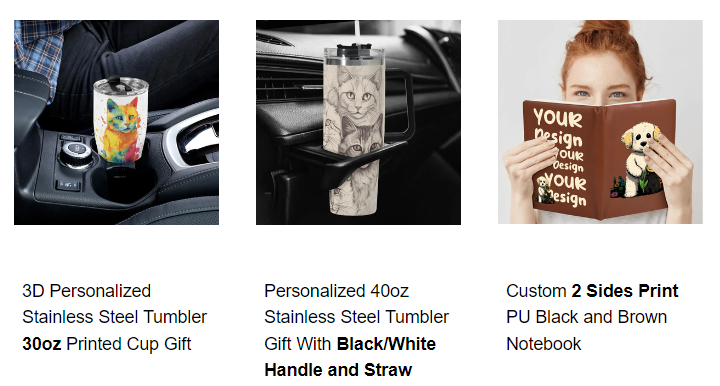
Personalized 40oz Stainless Steel Tumbler Gift With Black/White Handle and Straw
3D Personalized Stainless Steel Tumbler 30oz Printed Cup Gift
Brown Phone Flip Case PU Leather Cover for Most Mobile Phone Models
Black Phone Flip Case PU Leather Cover for Most Mobile Phone Models
Custom 2 Sides Print PU Black and Brown Notebook

Featured post

Q: I’m a social media influencer and YouTuber, am I able to set up an online store with POPCUSTOMS?

Sure thing! You are the best person to create your own store with POPCUSTOMS. Having a large fan base makes it easier for you to build your brand and store, creating a stronger connection with your fans and creating a virtuous cycle.

Fast to build your brand, enable you to directly engage with your audience, fostering stronger connections and increasing sales potential. Allow your followers to create custom products in your store and purchase them for their loved ones, it is a new way to express their love and support to you.

Featured post

Q: I don’t have experience in e-commerce, am I able to run a store?

For sure, it is easy to open an online store with just a few clicks in 3 steps. Over 700+ products for you to choose from and a professional customer support team to back to your business. It is a very good opportunity for you to start a part-time job in your spare time to make extra profit. Easy and free.

Featured post

Q: How to create a POPCOMMERCE Store?

There have Something Important you need to note before starting POPCOMMERCE SERVICE:

  1. One account is limited to ONE POPCOMMERCE Store.
  2. Only 50 designs can be synchronized to your POPCOMMERCE Store.
  3. Inactivity Criteria: We will automatically close stores that have not synchronized finished products in 180 days.

Charges:

It is totally free for you to use our POPCOMMERCE service. However, when your store has an order, we will charge 8% of Your Profit as commissions, that is “Your Profit * 8%”.

Your Profit = Total amount (paid by your customers to POPCUSTOMS) – Product’s cost – Shipping cost – Payment Processing Fee

Note: Payment processing fee ranges from 3.3% to 3.9%+0.3$

Please note above! Lets start it!

Launch Your POPCOMMERCE Store with Just a Few Clicks by Following Steps:

Step 1: Named your POPCOMMERCE Store

Let’s start with adding a store name here. Your POPCOMMERCE Store URL will contain the store name, so it must be unique. The store name can be changed anytime if you need.

For example, if your store name is “perfectto”, then your store URL will be: perfectto.popcustoms.me

Step 2: Add store details

Next, go to “Stores” in your POPCUSTOMS account scroll down the page and click “Create your own website in seconds”. Then, enter your store name and DNS setup will be auto finished, select the POPCOMMERCE Store option and add all the necessary information.

Step 3: Choose a theme

Then, select one of our store themes. In case you later decide that the originally picked theme is not working for you, don’t worry—you can change it at any time. Then, click Save and Launch POPCOMMERCE Store.

Step 4: Create and publish products

Now that the POPCOMMERCE Store is created, you can publish any previously created products or create new ones.

Please note that: Currently we only allow your POPCOMMERCE Store to sync 50 designs to your store.

To add items to your store, go to our catalog and choose a product. Then, click “Start Creating” option, add your design to product, and publish it to your POPCOMMERCE STORE.

Your store is all set! Copy the store link to share it with your friends, family, or social media.

Featured post

Q: Can I get a discount for the premium product visuals service?

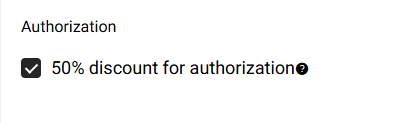
Sure thing. If you are willing to authorize us to share your amazing videos or photos on our popcustoms.com or our official media accounts, you’ll get 50% off our premium product visuals service. Check the box to get this discount for your visual orders,

We promise that we will not use and sell your designs to get profit. If there are some sellers who like your designs after seeing your authorized videos, we will guide them to your store to place orders. If we find someone who uses your designs or videos illegally, we’ll inform you right away.

Featured post

🚀New Q4 Season , New Services for you !

Dear all,

In a world where shoppers flock to online stores, in the coming Q4 season your prices and products matters more than ever. We put together a list of the 5 must-have website features to help screen printers make more sales and grow your business!

  1. Transparent pricing : Lower prices and shipping cost for quantity, color, size, artwork, and more…
  2. Special Offer:  From Sept.1st, we will UPDATE SPECIAL OFFER (Check it)
  3. $5-$300 Coupons: Get more coupons to order with instant product shares. Move your existing orders to get $50-$300 coupon for branding.  (Check it )
  4. Product Catalogs: Display Newest -products and detailed product descriptions. (Check it)
  5. Warehouse Services: Build a strong identity to save production time and fosters trust and connection with your customers. (Check it)

But wait, there’s more!
Think Automated Integrations / Branding Options / Personalization: – all working together to supercharge your website.

Thank you for choosing POPCUSTOMS!

Cheers!
POPCUSTOMS TEAM
business@popcustoms.com

Featured post

Squarespace Integration Tutorial

Connect your Squarespace store with POPCUSTOMS to sell with us!

Step 1: Sign up for a free account on POPCUSTOMS

Step 2: Connect your store

Step 3: Complete store settings

Step 4: Create designs and publish to store

Follow the steps below to connect your Squarespace store to your POPCUSTOMS account.

Step 1: Sign up for a free account on POPCUSTOMS

Head over to sign up for a free account on POPCUSTOMS if you don’t have one.

Step 2: Connect your store

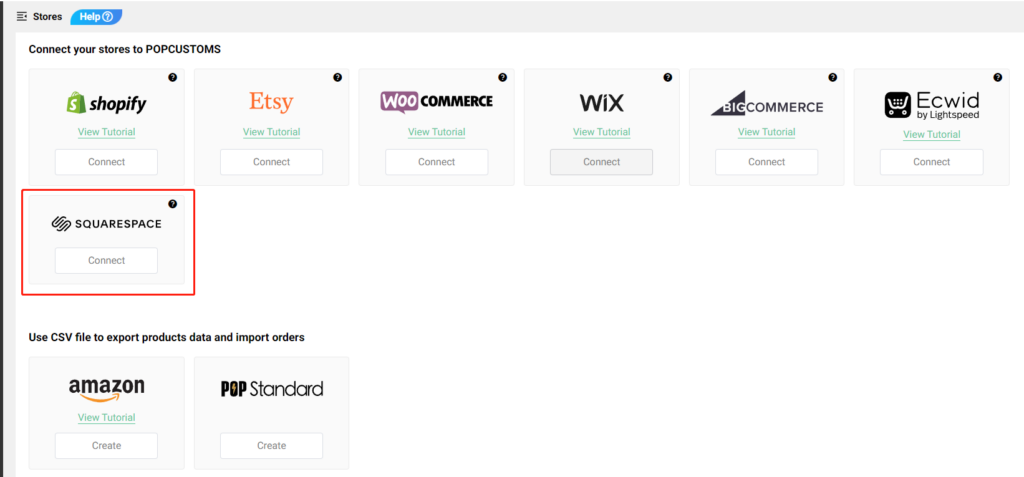
Log into your POPCUSTOMS account, go to Stores to find the Squarespace, and click the Connect button to get started.

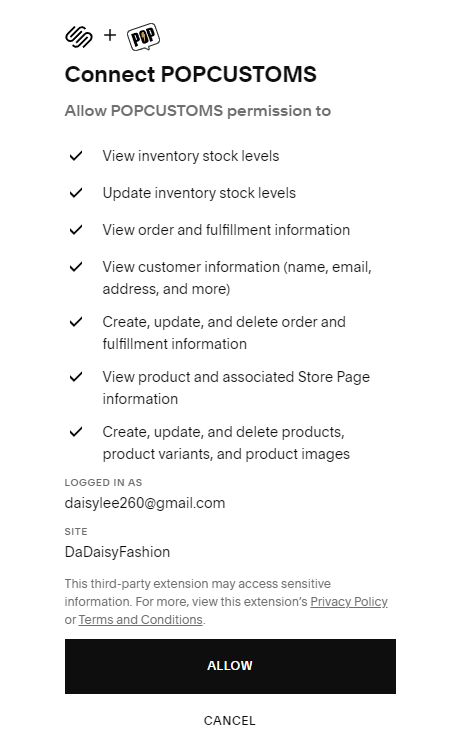
Click Allow to authorize the connection.

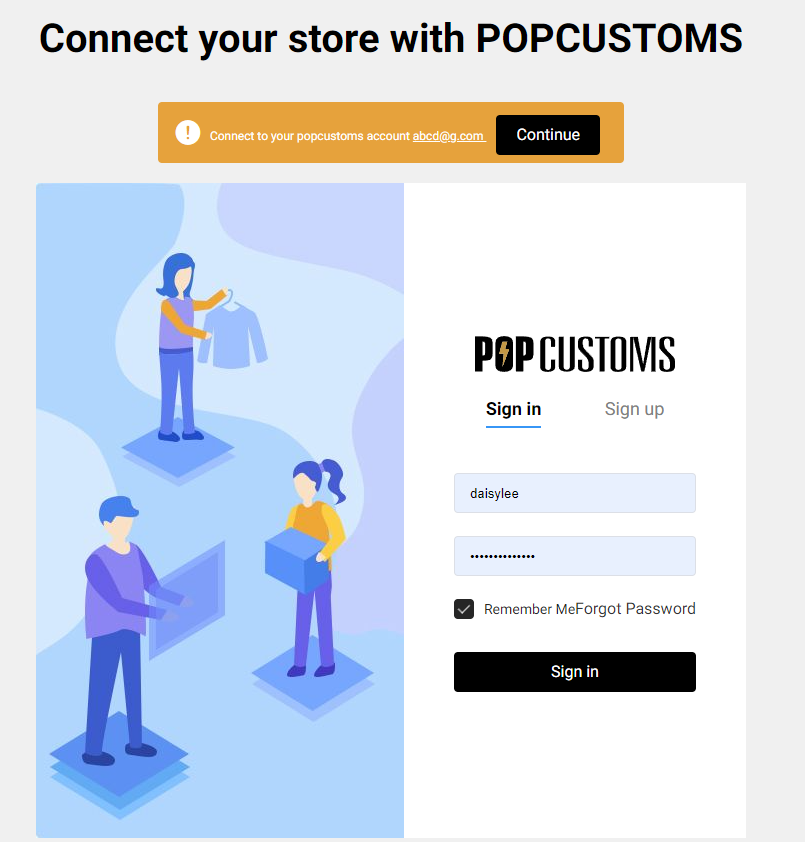
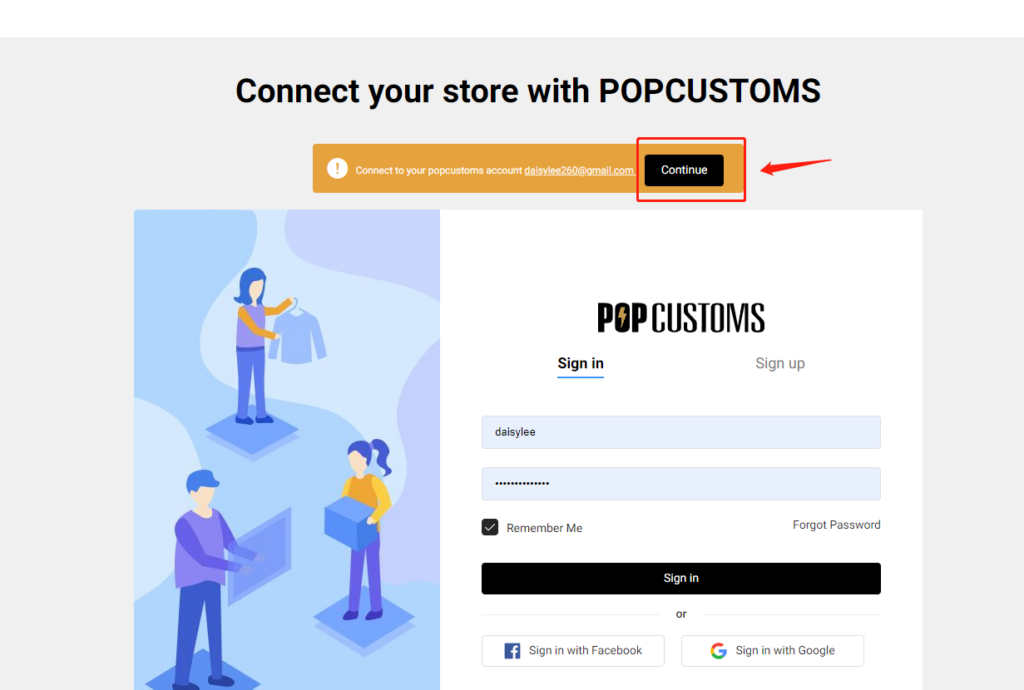
Then click the black Continue button to move forward,

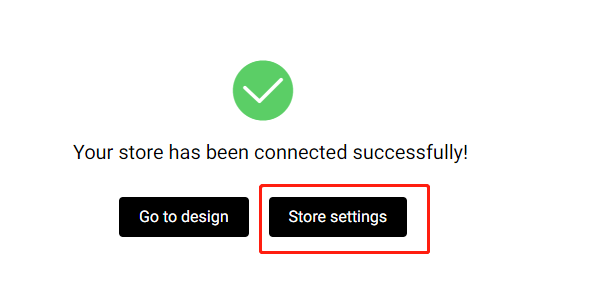
Finally, click the black button to authorize.

Step 3: Complete store settings

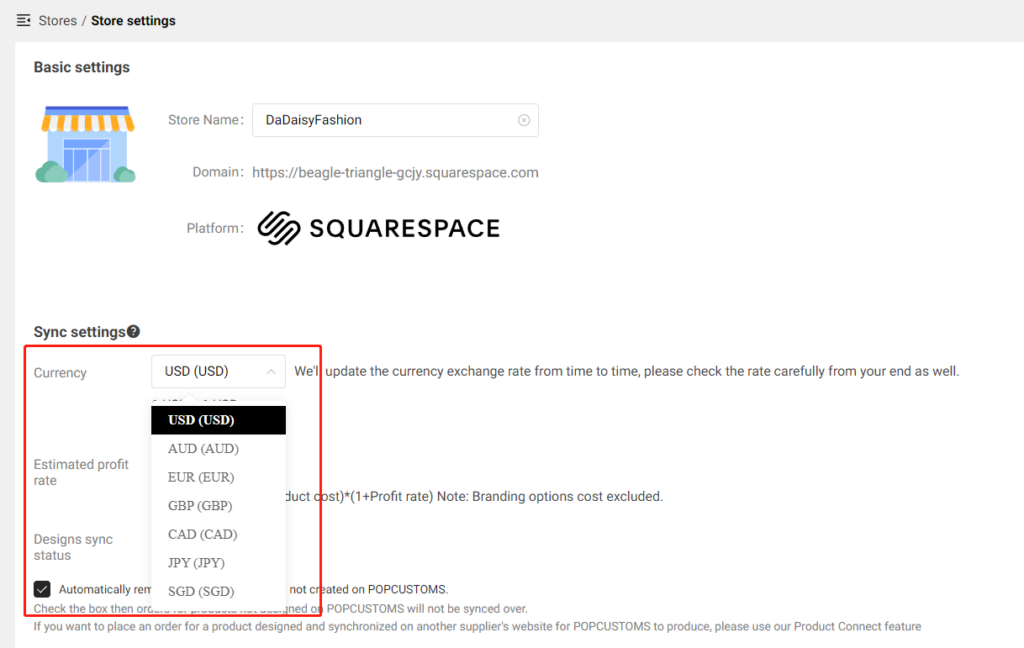
After connecting, we suggest you go to Store settings to confirm the currency settings first. The currency must be the SAME as that you use in your Squarespace store. This is requested if you want to publish products from our website to your store.

Click Store settings to find Sync settings -> Currency, and choose the currency you used in your store. We have USD, AUD, EUR, GBP, CAD, JPY, and SGD for you to choose from.

When you change the currency, the price of products that you published from our site to your store will be converted automatically from USD to the currency you choose.

You can configure the Shipping settings and Billing method settings here as needed, it helps you save time to process order payments.

Step 4: Create designs and publish to store
Now you can pick products to design and publish them to your store to start selling with us!

Something important to know,

  • When your orders are shipped out, we send an email to the recipient by default. The email will be sent on behalf of the seller’s store and will never contain any information about POPCUSTOMS. If you don’t want us to send this email to your customers, please go to Store settings -> Tracking notification settings to uncheck the box so the email will not be sent to your customers when orders are shipped.
  • Don’t support updating mock-ups; Don’t support syncing combined products temporarily; Don’t support publishing personalized products to Squarespace stores.

Featured post

Ecwid by Lightspeed Integration Tutorial

We’re excited to announce that you can integrate your Ecwid by Lightspeed store to sell with us with a few simple steps!

Step 1: Sing up on POPCUSTOMS

Step 2: Connect your store

Step 3: Publish products to your store

Follow the steps below to set up the integration between your Ecwid by Lightspeed store and our POPCUSTOMS.

Step 1: Sing up on POPCUSTOMS

First of all, you should have accounts both on POPCUSTOMS and Ecwid by Lightspeed. Your Ecwid by Lightspeed store plan has to be Business or above to continue.

Step 2: Connect your store and configure store settings

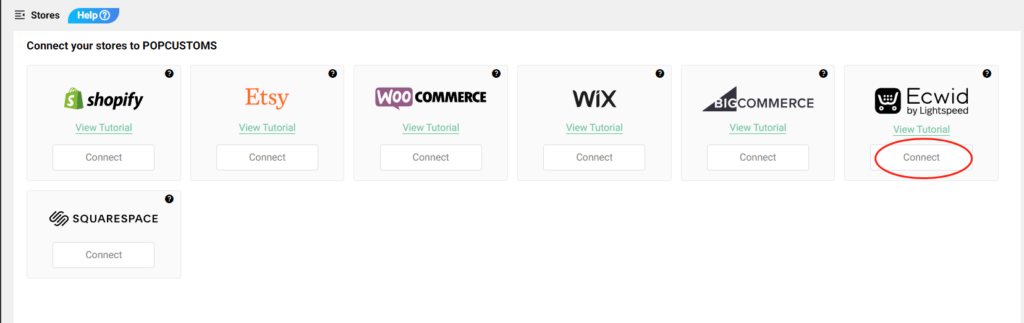
Go to Dashboard on POPCUSTOMS, click Stores to find Ecwid by Lightspeed and click the Connect button to get started.

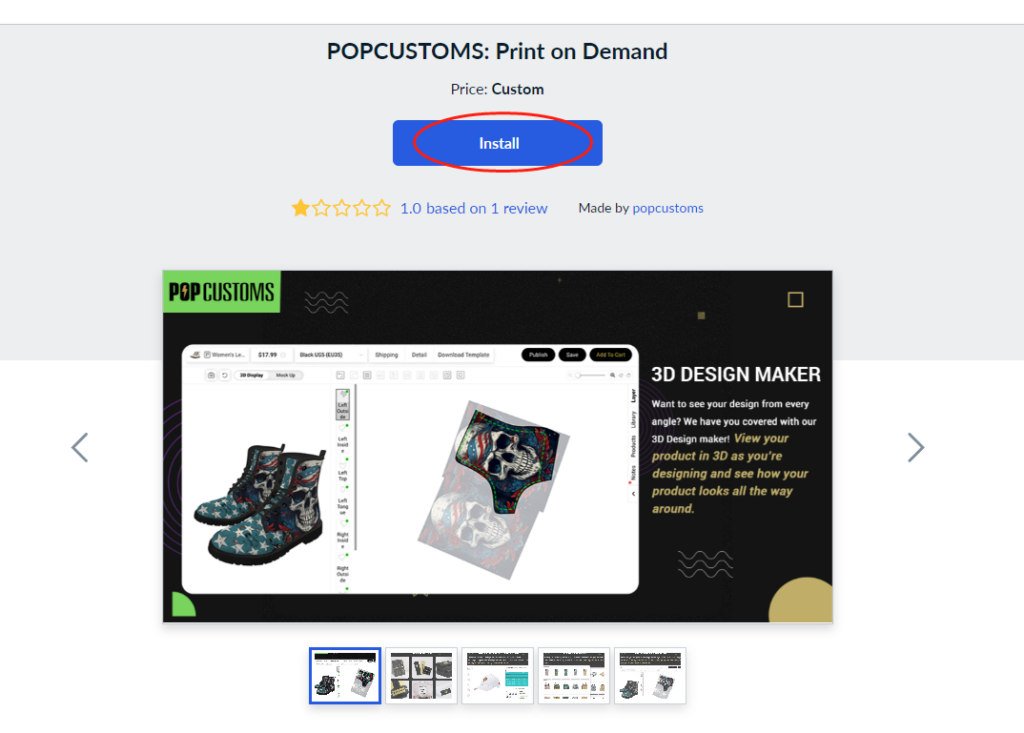
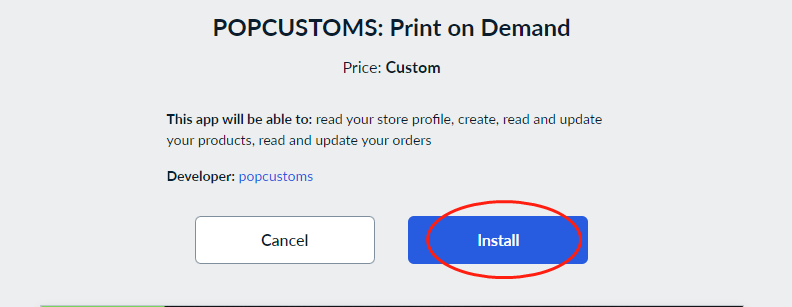
Then you’ll be driven to a new page to install our App, click Install.

Wait a moment and the page will automatically jump to the next step then you can click Continue to move forward,

Finally, click the black button to authorize the connection.

After connecting, you can go to Store settings to configure Shipping settings, Sync settings and Billing method settings for your Ecwid by Lightspeed store as needed.

Step 3: Publish products to your store

Now you can pick products to design and publish them to your store.

Featured post

Wix Integration Tutorial

We are excited to announce that you can integrate your Wix store to sell with us now!

Follow the steps below to set up the integration between your Wix store and our POPCUSTOMS.

Step 1: Sign up on POPCUSTOMS

Step 2: Connect your Wix store

Step 3: Sync products to your store

Step 4: Sync orders to POPCUSTOMS in real-time

Step 1: Sign up on POPCUSTOMS

First of all, you should have accounts both on POPCUSTOMS and Wix. If you don’t have signed up for your account on POPCUSTOMS, please register with us now.

Step 2: Connect your Wix store

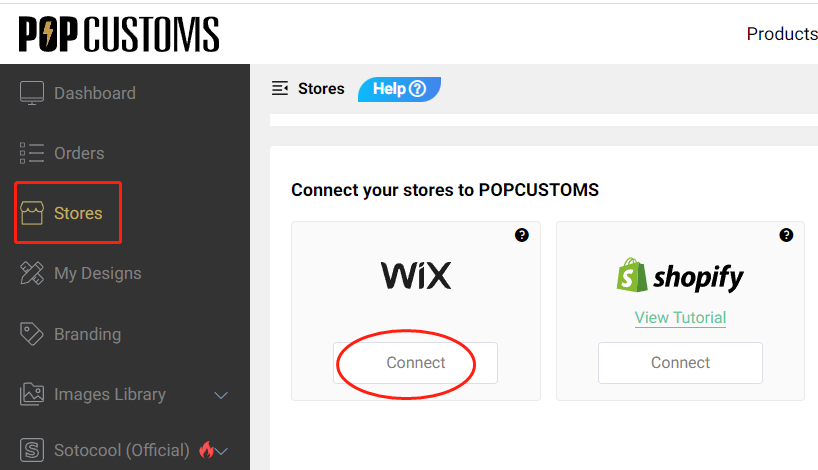
Log into your POPCUSTOMS account, go to Stores to find Wix, and click the Connect button to get started.

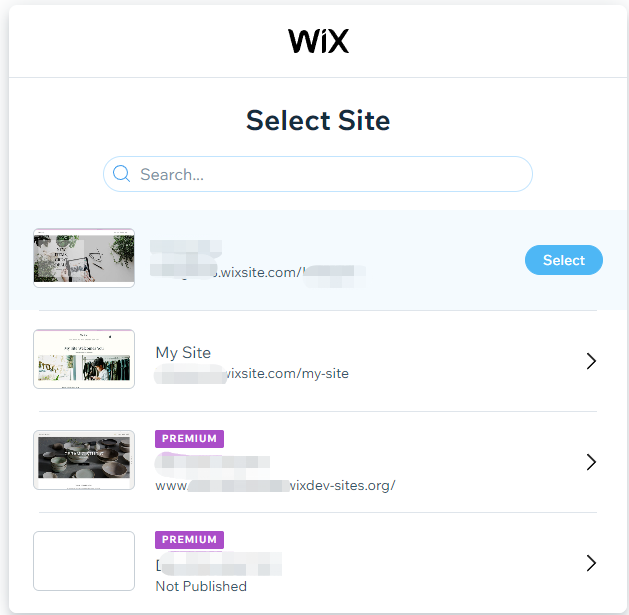
Choose a Wix store that you have to connect.

*Make sure that your Wix store is Published, if the status is Not Published, please go to publish it first.

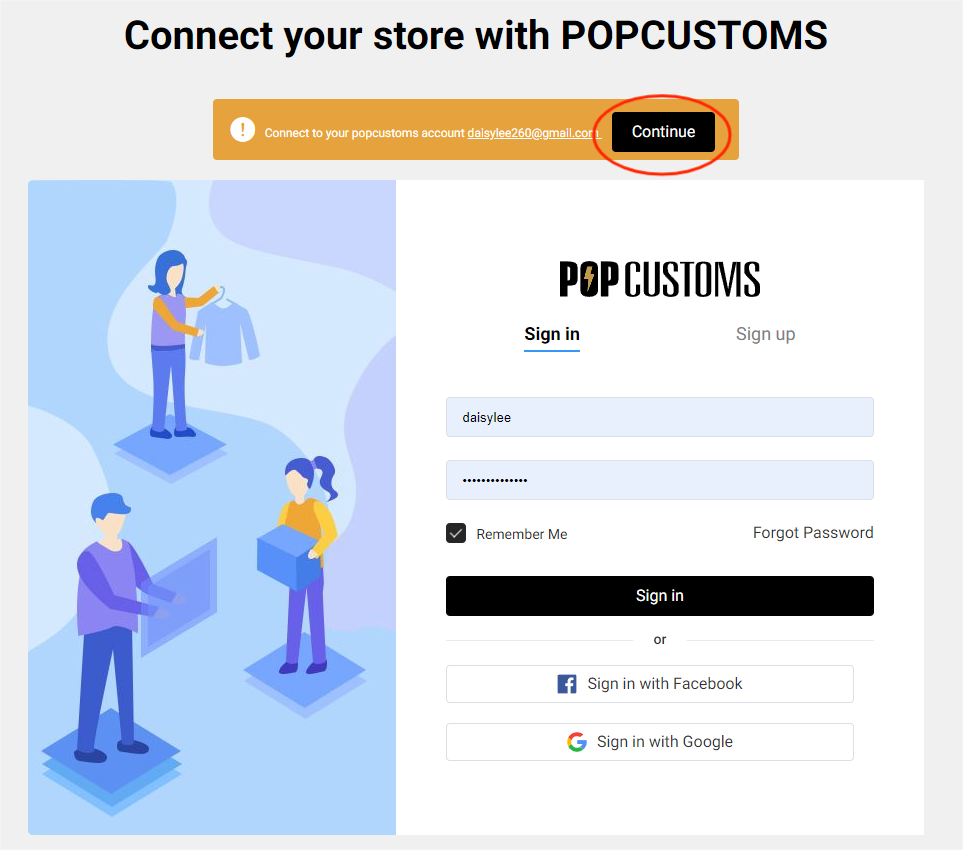
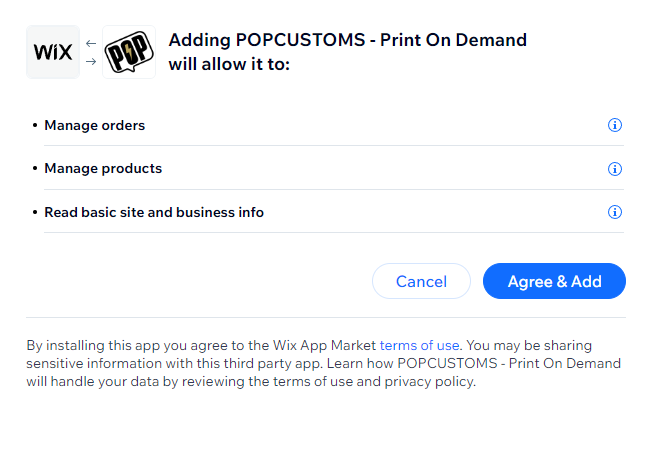
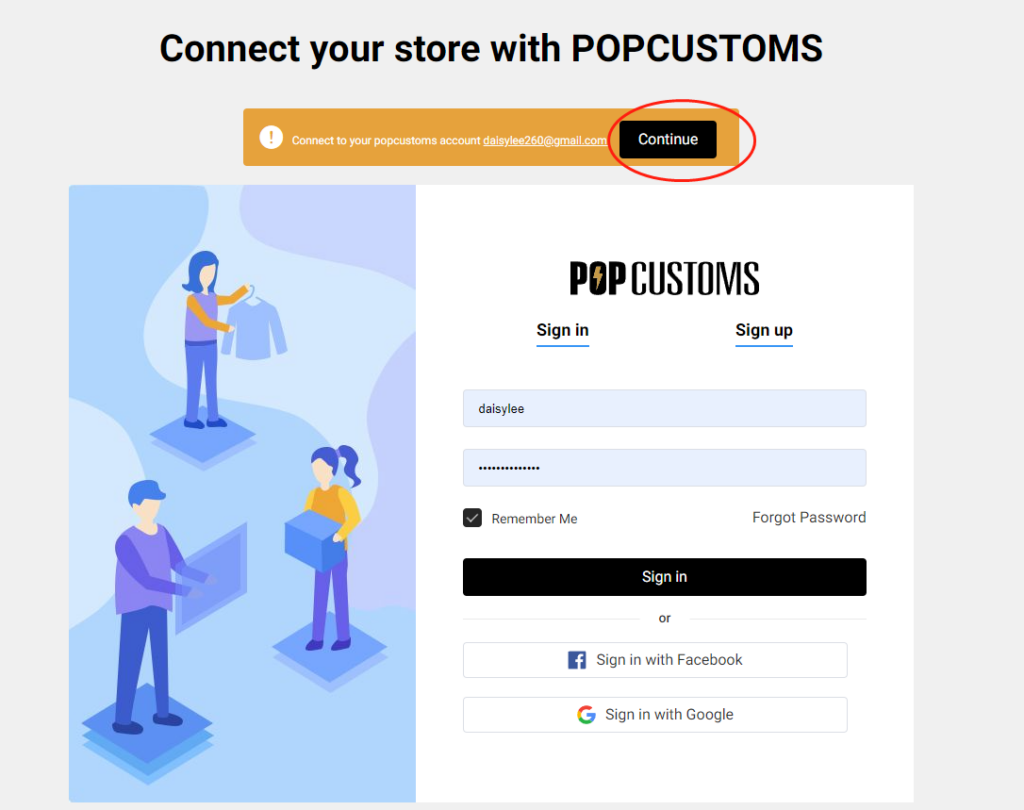
Click Agree & Add and then you’ll be driven to our site, sign in and click Continue to move forward.

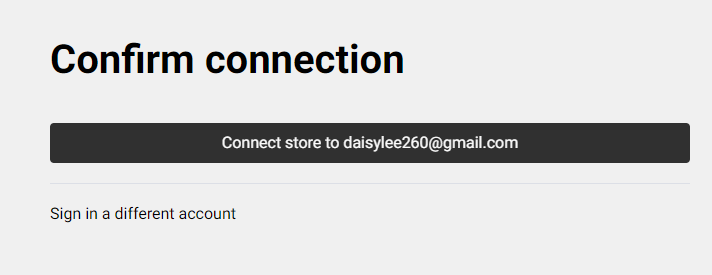
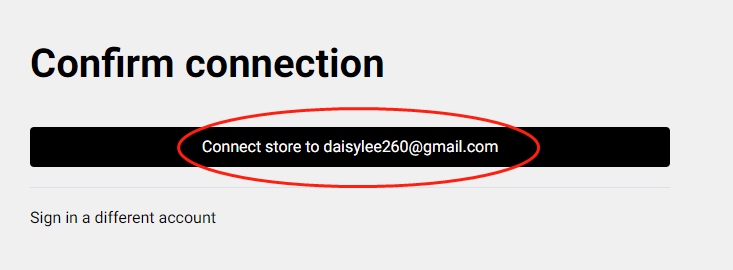
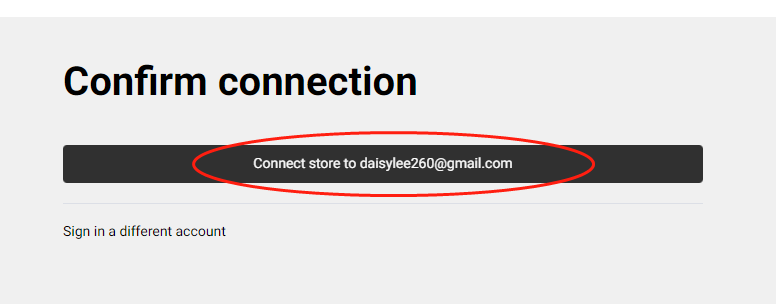
Click the black line to confirm the connection between your Wix store and POPCUSTOMS.

Step 3: Sync products to your store

Go to our product page to select products to design and sync them to your store.

Step 4: Sync orders to POPCUSTOMS in real-time

When your customers place orders from your store, the order will automatically come to our site in real time.

Something important to know:

  • When your orders are shipped out, we send an email to the recipient by default. The email will be sent on behalf of the seller’s store and will never contain any information about POPCUSTOMS. You can check the email template by clicking Wix admin -> Settings -> eCommerce Settings -> Order email notifications -> SHIPPING CONFIRMATION. You can also uncheck the box to turn it off so the email will not be sent to your customers, or click the Edit button to edit the email notification as needed.
  • Don’t support updating mock-ups; Support syncing combined products but not personalized products to Wix.
  • Previous Wix users should integrate your Wix store again so the product and orders can be automatically synced between your store and our site.
Featured post

POPCustoms Shipping Zone

1 United States

United States

2 Canada

Canada

3 Mexico

Mexico

4 Europe

United Kingdom, France, Germany, Italy, Spain

5 Rest of Europe

Austria, Belgium, Bulgaria, Croatia, Cyprus, Czech Republic, Denmark, Estonia, Finland, Greece, Hungary, Ireland, Latvia, Lithuania, Luxembourg, Malta, Netherlands, Norway, Poland, Portugal, Romania, Slovakia, Slovenia, Sweden, Switzerland

6 Oceania

Australia, New Zealand

7 Middle East

Bahrain, Israel, Saudi Arabia, United Arab Emirates

8 JP

Japan

9 Asia

India, Malaysia, Philippines, Singapore, South Korea, Thailand, Vietnam

10 Rest of World

Angola, Antarctica, Argentina, Azerbaijan, Bangladesh, Benin, Bhutan, Botswana, Brazil, Burkina Faso, Burundi, Christmas Island, Colombia, Djibouti, Gabon, Gibraltar, Guam, Guernsey, Guinea, Indonesia, Isle Of Man, Jersey, Kazakhstan, Kyrgyzstan, Ivory Coast, Pitcairn Islands, Russia, Rwanda, Saint Helena, Saint Pierre And Miquelon, Samoan Islands, San Marino, Senegal, Serbia, Seychelles, Sint Maarten, South Africa, South Georgia And The South Sandwich Islands, Svalbard Og Jan Mayen, Swaziland, Togo, Tunisia, Uganda, Ukraine

11 CN

Hong Kong, Taiwan, Macau

Featured post

📢2023 Updates with Freshly products for you !

Hi, Customsers & Artists!

A lot of new products has happened on Popcustoms.

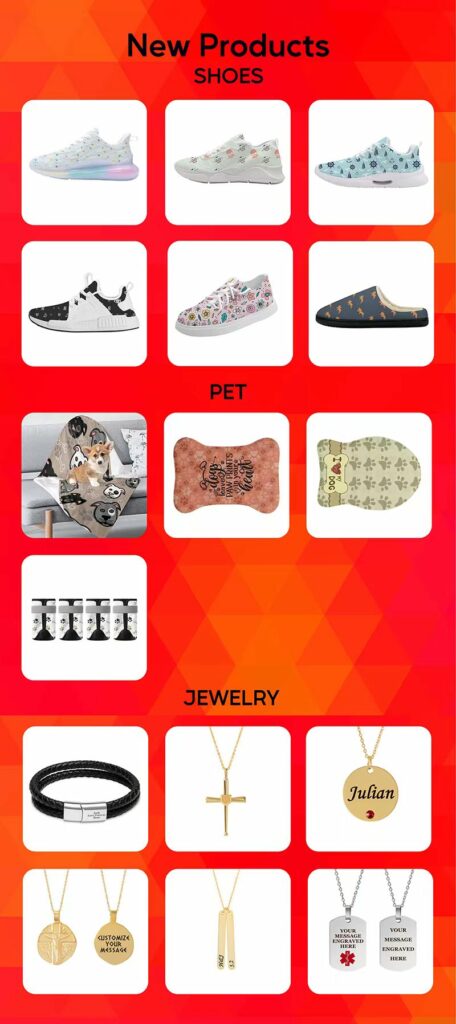
Since then we’ve added a bunch of new products that might interest you, so you’ll surely find something that makes you go wow! How about the products below?

1: New Tech Runing Shoes / Sporty Sneakers

Check out : https://popcustoms.com/products/All-Footwear?page=1&limit=24&basic_category_id=200

2: Personalized and cute pet products for pets love

Check out :https://popcustoms.com/products/All-Pet-Products?page=1&limit=24&basic_category_id=296

3: Personalization Jewelry Necklaces and Bracelet for lover friends

Check out : https://popcustoms.com/products/All-Jewelry-Accessories?page=1&limit=24&basic_category_id=276

Enjoy !

Stay in touch!

business@popcustoms.com

POPCUSTOMSTEAM

Featured post

Q: How to create a new Design-Plus product for personalization?

If our public Design-Plus products can’t meet your needs, you can create your own new Design-Plus products for personalization.

Pick a product to design first, and configure the design elements to make them personalizable by your customers. Please watch these two videos below to learn more.

We currently help you to create new Design-Plus products for personalization without additional charges. Try it out now!

Featured post

Shopify Store Integration Tutorial


Note:

1. You should have one Shopify store to get started.

2. A platform can only authorize one store. If you want to authorize a new store on the same platform, you need to delete the previously authorized store.

Step 1: Sign up for a free account on POPCUSTOMS

Sign up for a free account by using your Email address or social media accounts.image.png

Step 2: Go to this website: https://apps.shopify.com/popcustoms, and click “Add app” to install our App.

1b20195143f3137d1131b84f2a46856.png

Step 3: Log in to your Shopify account

0016234371be0bc908b70a61650463d

Step 4: Click “Install app”.

0016234373ad6aec9cb256d9403cbca

Step 5: Click “Continue” to authorize.

0016234376120004b8be6833c769223

Step 6: Confirm the connection to complete the authorization.

00162e8df3cade86004e1b4e3adea22

Step 7: Add your products

To accept orders and make money you need to publish products to your Shopify store. On POPCUTOMS, you can just click Products on the Dashboard page to design and add products conveniently.

Step 8: Complete the Store settings after connection, including 

1. Basic settings

2. Sync settings: ① Currency; ② Estimated profit rate; ③ Product status

3. Shipping settings

4. Billing method settings

Click the guide to check.

That’s all!

Note: Your Shopify orders will now be automatically imported into POPCUSTOMS.

Featured post

WooCommerce Store Integration Tutorial

Note:

1. Please follow all the steps below to authorize.

2. A platform can only authorize one store. If you want to authorize a new store on the same platform, you need to delete the previously authorized one.

Step 1: Install POPCUSTOMS WordPress plugin

Log in to your WooCommerce account, click Plugins -> Add New, and search POPCUSTOMS to install the plugin.

001630d8546ad502e7832d3822187af

001630d8547c58e5b90bd0dd7bed5ce

After installing, click Activate. Then you can find a POPCUSTOMS plugin added in the left column, click it and go to register at POPCUSTOMS.COM.

001630d857a59a8c2bab6aa8a4ed02f

001630d8592a43b9ec0cb43bbb744f2

Then you will be driven to POPCUSTOMS to sign up for a free account or to the Dashboard directly if you have signed up and logged in.

Step 6: Connect your WooCommerce to POPCUSTOMS

① Click Stores -> WooCommerce -> Connect to fill in your WooCommerce store domain and authorize the connection.

image.png

00162e8d1c3be3dc143d4d765c274bd

00162e8d231b28f88685471e3d1089f

② Click the “Approve” button to complete the authorization.

00162e8d28041602cfa58098c571c63

Next step, we suggest you complete the store settings.

That’s all!

Note: Your WooCommerce orders will now be automatically imported into POPCUSTOMS.

Featured post

BigCommerce Store Integration Tutorial


Note:

1. Please follow all the steps below to authorize.

2. A platform can only authorize one store. If you want to authorize a new store on the same platform, you need to delete the previously authorized store.


Step 1: Sign up for a free account on POPCUSTOMS

Click the Sign up button in the right upper corner to create a free account on POPCUSTOMS.

Step 2: Install the POPCUSTOMS app on BigCommerce

① Click the link below to install our app

 https://www.bigcommerce.com/apps/popcustoms/ 

② Log in to your BigCommerce account

③ Click “Install”.

00162e8d715b65cd9d9f82902fd4c46

④ Click “Confirm“.

00162e8d7556d65f513bbfe867d8d33

Step 3: Connect your store

After you install the app, you’ll be asked to log into POPCUSTOMS accounts. Click Sign in then you will be taken to a new page to confirm the connection between your BigCommerce store and POPCUTOMS. Just click it to complete the connection.

00162e8d8904c87134f31db0c68aa79

Step 4: Add products to your store

Now you can click Products on the Dashboard page to design and add products to your store with just a few clicks. Start now to add your first product!

Step 5: Complete the Store settings after connection, including

一. Basic settings

二. Sync settings: ① Currency; ② Estimated profit rate; ③ Product status

三. Shipping settings

四. Billing method settings

Click this guide to check.

That’s all!

Note: Your BigCommerce orders will now be automatically imported into POPCUSTOMS.

Featured post

Bulk Design Tutorial

If you want to design several products at once, our bulk design feature will help you make it easily and quickly.

Please follow the steps below,

Step 1: Sign up & log in

Step 2: Choose products & upload images

Step 3: Adjust and save designs

Step 1: Sign up & Log in

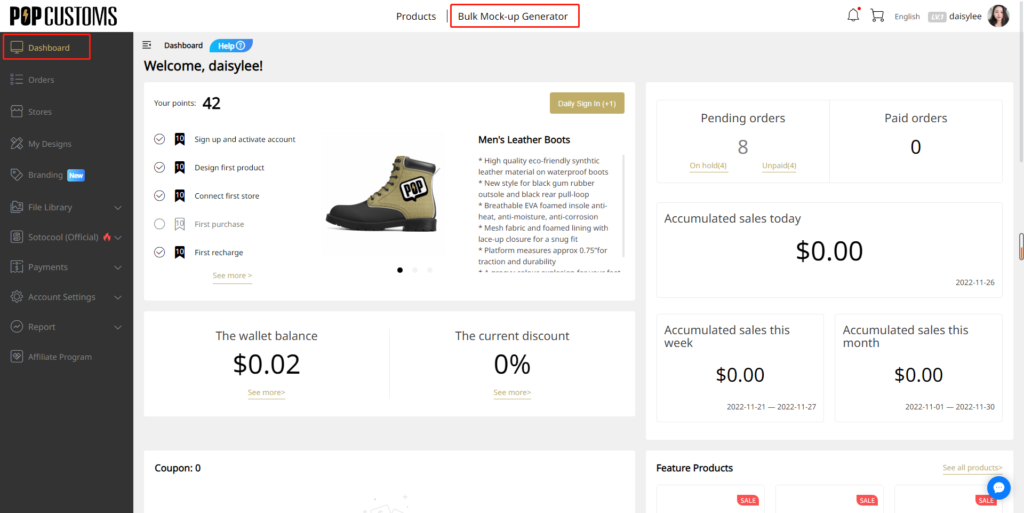
You should sign up for a free account on our website, and go to your Dashboard>Bulk Mock-up Generator.

Step 2: Choose products & upload images

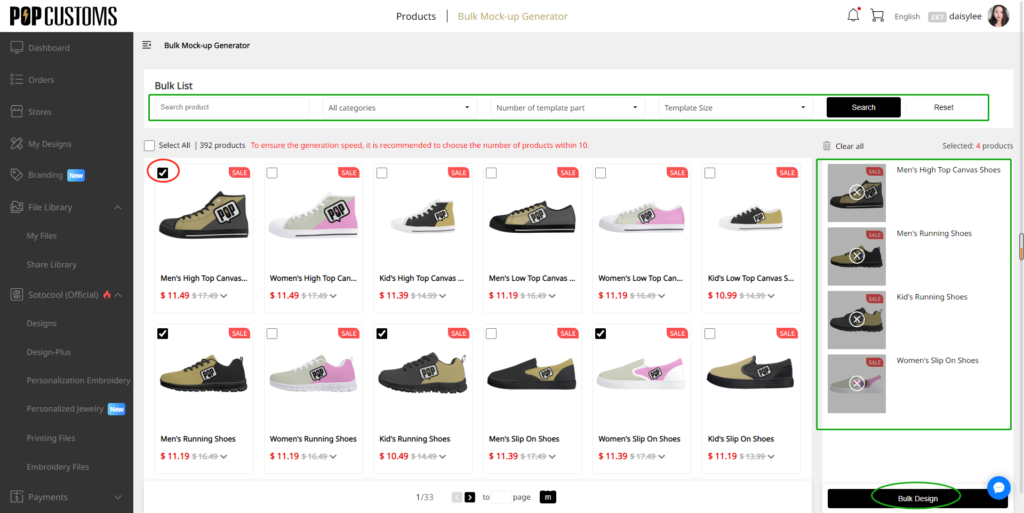
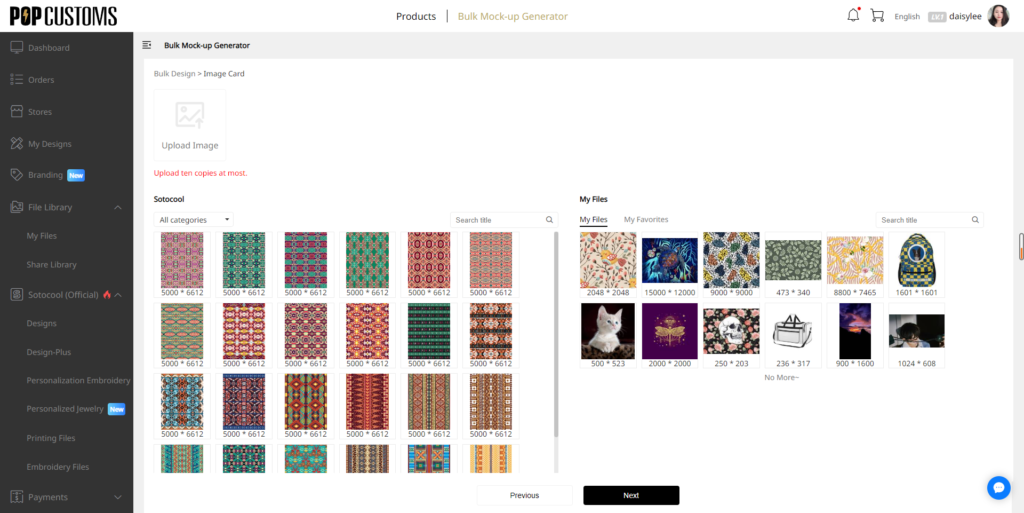
Choose products that you want to design, you can select up to 10 at once. Then click the Bulk Design button to upload your own images or select images from our Sotocool library. You are allowed to upload 10 images at most.

Step 3: Adjust and save designs

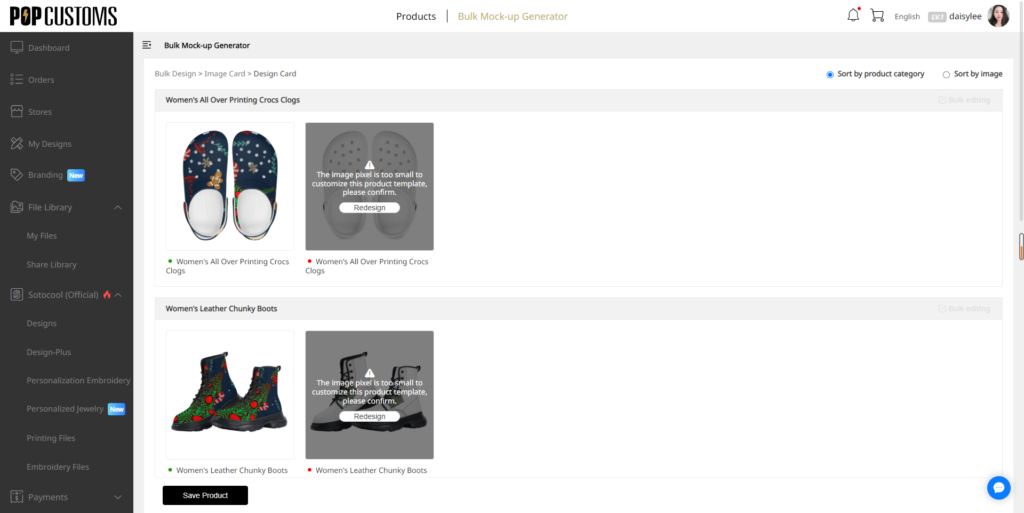
Save the design if you are satisfied with the design result. However, if there are some images’ pixels too small, you have to redesign the product to make sure the print quality is good enough. Don’t forget to click the Save Product button to save your designs.

That’s it! All your designs will be stored in My Designs, you can go to check and sync them to your store there.

Featured post

Q: Can I integrate my Amazon store into POPCUSTOMS?

Currently, we can’t integrate into Amazon stores, but you can export your design info including images and descriptions from our website, fill them in your Amazon product template, and import them to Amazon.

Step 1: Create a custom store

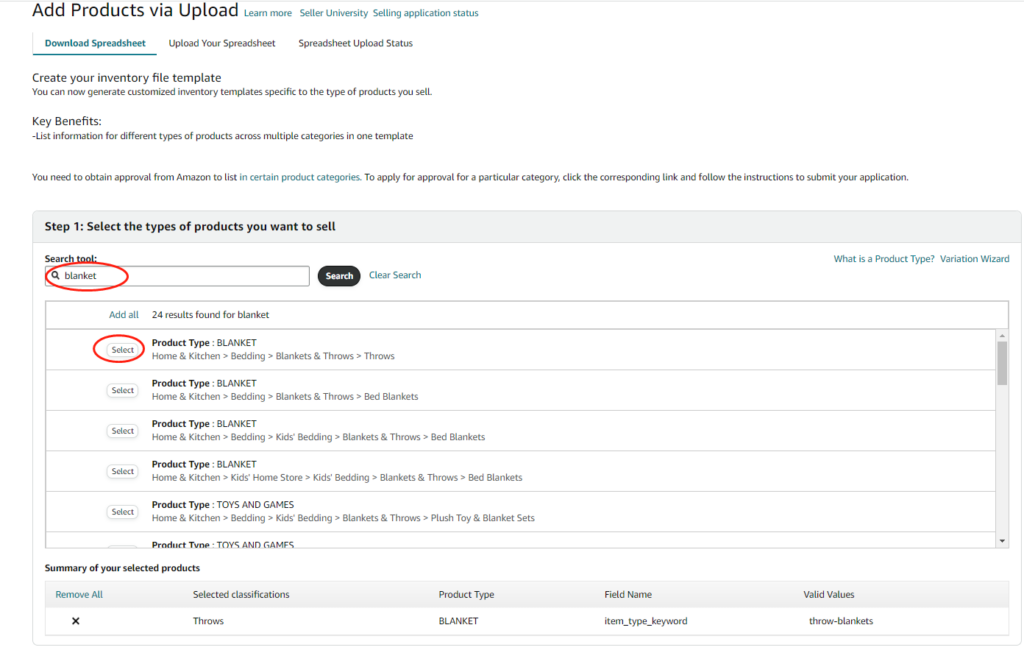
Step 2: Download Product Template from Amazon

Step 3: Export designs from POPCUSTOMS

Step 4: Fill in Amazon Product Template & Upload

To sync products and place orders manually, create a custom store.

Step 1: Create a custom store

Click the Create button under Amazon to create an Amazon store, and name the store as needed. This store will be used when you import your Amazon orders.

0016300a9e1cb0b5481133108b66411

0016300a9dbc6160c167e77625f8a82

Step 2: Download Product Template from Amazon

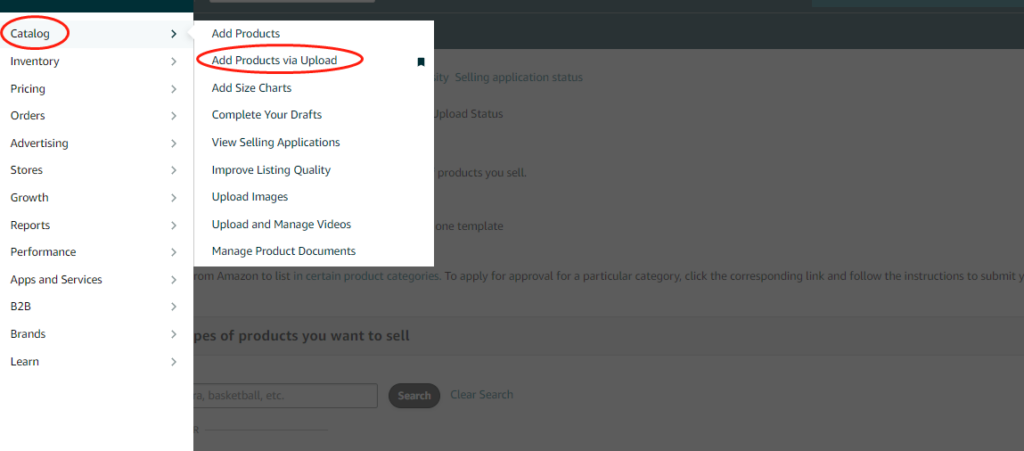
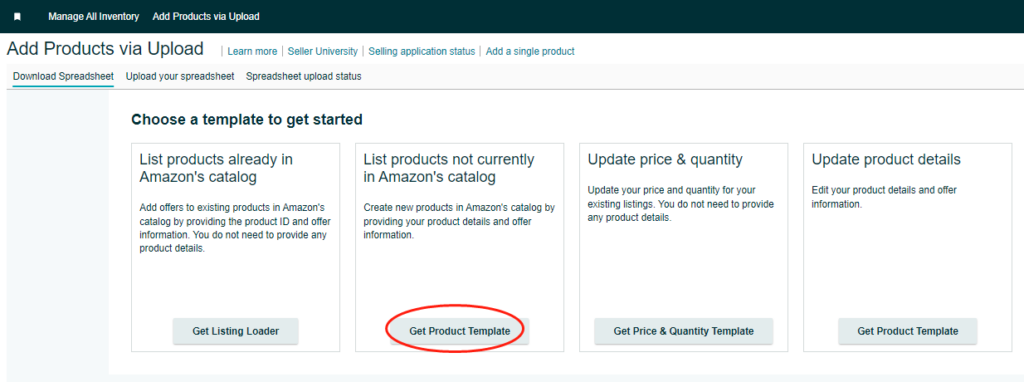
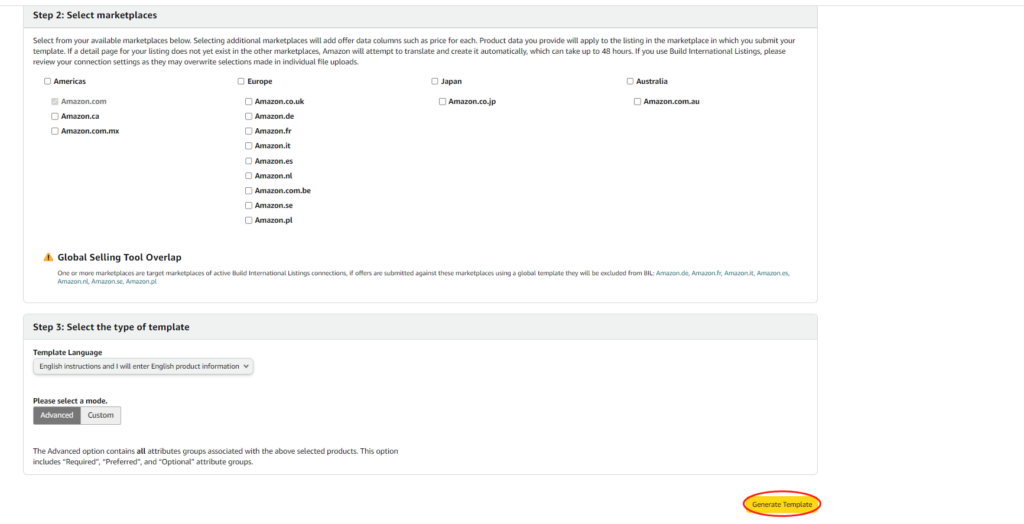
Go to your Amazon seller central to generate and download the product template you need.

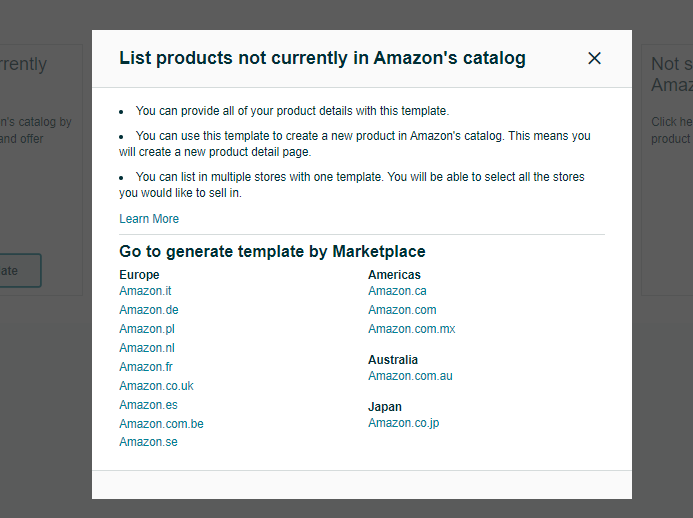
Choose the marketplace of your Amazon store.

This product template file should be saved for use later.

Step 3: Export designs from POPCUSTOMS

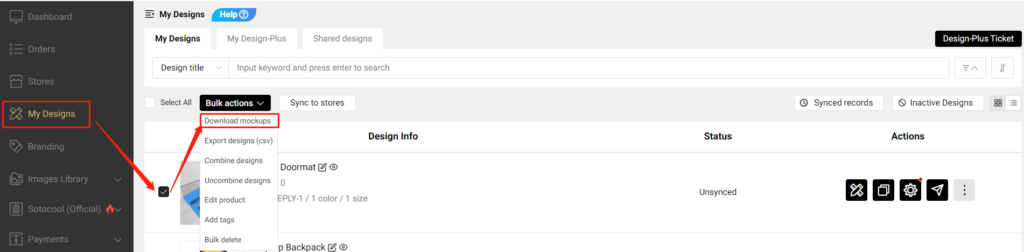
After completing your designs, you can go to Dashboard -> My Designs to find and select them, and click Bulk actions -> Download mockups to download product data.

Step 4: Fill in Amazon Product Template & Upload

Copy descriptions, images, and SKUs from the downloaded product data file at POPCUSTOMS and paste them to the product template downloaded from Amazon.

*Since we use SKUs to match products when producing, we suggest you use our SKUs and don’t make any changes.

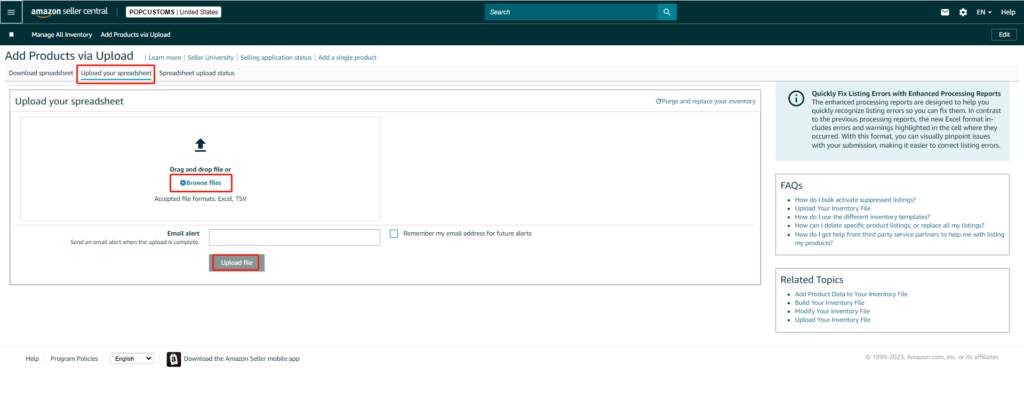
Finally, upload the product template to Amazon

That’s all!

*Click here to learn how to import your Amazon orders to us for fulfillment.

Featured post

Etsy Store Integration Tutorial

Note:

1. Please follow all the steps below to authorize.

2. A platform can only authorize one store. If you want to authorize a new store on the same platform, you need to delete the previously authorized store.

Step 1: Sign up for a free account on POPCUSTOMS

Click the Sign up button in the right upper corner to sign up for a free account first.

Step 2: Authorize POPCUSTOMS Etsy application

① Go to Dashboard -> Stores and click the Connect button under Etsy to authorize the connection between your Etsy store and POPCUSTOMS account.

image.png

② Log in with your Etsy account and click the “Grant access” button to authorize.

00162e8d4eeed770bb8971647d8d17d

Step3:Add products and publish them to your Etsy store

To accept orders and make money you need to publish products to your Etsy store. On POPCUTOMS, you can just click Products on the Dashboard page to design and add products conveniently.

Step 4: Complete the Store settings after connection, including

一. Basic settings

二. Sync settings: ① Currency; ② Estimated profit rate; ③ Product status

三. Shipping settings

四. Billing method settings

Click the guide to check.

That’s all!

Note: Your Etsy orders will now be automatically imported into POPCUSTOMS.

Featured post

Q: How to have my branding items and ship them with my orders?

Let’s show you how to add your branding items to your designs so that they can be shipped with your orders.

*The branding items will not sync to your store as commodities so you should set your retail price of products higher enough to include the branding materials costs. However, the mock-ups of the branding items will be shown on your storefront if you use the Publish button to sync products.

Step 1: Create your brand

Step 2: Design and add branding materials

Step 3: Add branding materials to products

Please follow the steps below to make sure your branding materials will ship with your orders successfully.

Step 1: Create your brand

First of all, you have to create your brand. If you have different stores with different brands, you can create different brands to store your branding materials separately.

00163468744811055571e0cf8fe6468

Note: You can delete the brand if needed, but all branding materials under this brand will be deleted as well. You can move them to your other brands as needed before delete.

001634687754144322c0f95f6d23118

0016346877deac08c47cef2d1d8778f

Step 2: Design and add branding materials

Click Templates, and pick one to design.

001634687b0c4f1c930a13b8d145b8d

Save the design and store it under your brand. If you have created a new brand before designing, you can choose the brand name directly here. If not, you can click Add to create one by now.
001634687d275c7c4738984f385a61d

Then you’ll see your designed branding materials are under your brand.
001634687fb2892aca5968bb965b333

Step 3: Add branding materials to products

Different branding materials can be added to different products, for example, custom shoe boxes can be only added to Footwear.

There are some circumstances in which you can add your branding items and make sure they will be shipped with your orders.

一. For orders automatically synced from stores

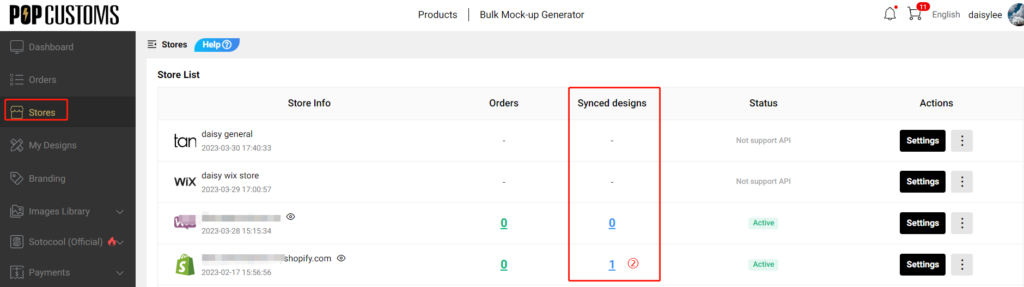
① Go to Stores, find the store you connected and click the content under Synced designs to find products that you want to add your branding materials.

Click + to add the branding materials that you want to ship with this product.

001634688b27bc31e8351817a5ab815

001634688ae85591e636ce46c41ee57

That’s it! After that, all orders for this product synced from this store will be automatically fulfilled and shipped with the added branding materials.

*If you forget to add the branding materials first and the order has been synced to POPCUSTOMS. You can go to Orders->On hold to find this order and add the branding materials there.

二. For orders placed from a shopping cart

② Pick the product that you want to purchase to design, go to My Designs and add it to the shopping cart.

001634688f067c50f1ea1f463e95219

001634688f0512ff73a177756d0ce86

001634688eb58c37036a14297d4eec6

Here you can add the branding materials that you want to ship with your order.

0016346891b2617e616672f997b730d

Then click the Place Order button to submit and pay.

00163468919c55fa7c908b38d849a92

*Please noted that the number of branding items will be the same as the number of products.


That’s all.

Featured post

Q: What are your Sample Application Rules?

In general, users can only apply for a sample order once and one order with 1 product for free. However, we understand that users may need many different styles of samples so there are rules corresponding to different sample quantities, as follows

  1. 1 item in your sample order. You need to pay for the shipping fee and tax (if required), and the product’s cost will be refunded to you.
  2. 2-5 items in your sample order discount. You need to pay for the shipping fee and tax (if required) and 80% of the product’s cost as a sample discount.
  3. More than 5 items in your sample order discount. We’ll give you a sample discount according to the actual status of your order.

Only those products on this sample page can be chosen as a sample.

Note:

1. Embroidery costs for embroidery-on-demand products should be covered by you.

2. All branding items are considered a commodity except the branding tags.

This rule currently applies to Shopify sellers. For sellers from other platforms, don’t hesitate to get in touch with us (samples@popcustoms.com) for more information.

📢❗NEW YEAR’S HOLIDAY ANNOUNCEMENT

Dear Partners & Friends,

We would like to inform you that our factories/office/delivery companies will be on holiday from Thursday (January 1st, 2026) to Saturday (January 3rd, 2026) for the New Year’s Holiday.

During this time, our response may be delayed. We kindly ask for your understanding and encourage you to contact us if there are any urgent matters that need to be resolved.

We will arrange for staff to be on duty every day and will check and reply .

Thank you so much!
Best regards, From POPCustoms

关于洞洞鞋生产延迟

尊敬的POPCUSTOMS用户:
近期由于洞洞鞋订单量激增,以下几款洞洞鞋产品原定1~3天出货,现被迫延期出库,对给您造成的影响,我们深感抱歉,敬请理解与支持。

生产延期洞洞鞋产品
白色款洞洞鞋
黑色款洞洞鞋
白色款加绒洞洞鞋
黑色款加绒洞洞鞋

当前工厂仍在赶制订单,将会尽快将出库进度恢复至承诺的时效范围内,再次向您表示歉意,同时也感谢您对POPCUSTOMS平台的支持。

全印汽车杯(美国发货)库存告罄

尊敬的POPCUSTOMS用户:
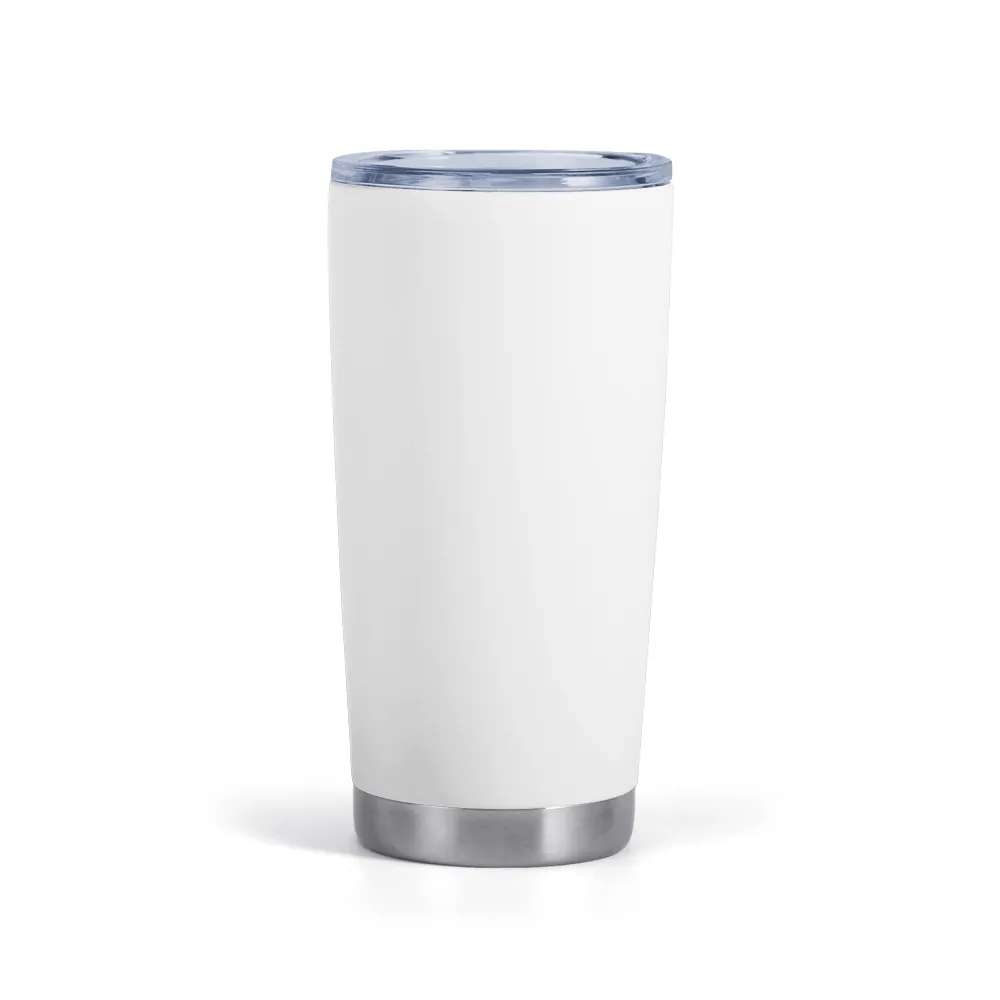
由于近期订单量激增,全印汽车杯(美国发货)(图片参考末尾)库存已临近售罄,将于17号停止接单。

请您确认:
1、2025.12.17 18:00 之前下单的订单,将按照正常流程生产出库;
2、2025.12.17 18:00 之后不再接收新的汽车杯订单,恢复时间预计12月30号,届时将另行通知。

给您带来的不变,我们深表歉意,敬请理解与支持。如有需要帮助,可联系您的客服经理,或扫描网站客服二维码联系客服人员。

📢❗Shipping-cost Update for Clocks

Dear Customers / Artists,

With the peak shipping season now under way, shipping companies have raised their freight rates for oversize items.
Effective 10 December 2025, the following clocks will carry a revised shipping fee:

The new rate will be shown automatically at checkout—no action is required on your part.
We will review the surcharge quarterly and remove it as soon as carriers revert to standard pricing.

Thank you for your understanding and continued support.

🚀 🚀Christmas Order Cut-off Time Notice🚀 🚀

Dear Customers,

With the 2025 Christmas holiday season drawing near, we would like to inform you of our order cut-off times to ensure timely deliveries for your holiday sales. Please review the following schedule and adjust your procurement plans accordingly.

  1. China Factories / Products
    • Standard Shipping: Orders must be placed no later than December 5–6.
    • Express Shipping: Orders must be placed no later than December 11.
  2. USA Factories / Products
    • Orders must be placed no later than December 12–15.
  3. Promoted / Advertised Items
    • If you are currently running promotions or advertisements for any of our products, please reach out to us in advance so we can prepare sufficient inventory and avoid any potential delays.

Kindly note that our factories and offices (including the U.S. facility) will remain online on weekdays throughout the Christmas season and will continue to support your business.

Thank you for your attention and cooperation. Wishing you a joyful Christmas and prosperous year-end sales!

本周众潮科技新上架4款日本直发产品(包邮)

男士背后印200g纯棉短袖(包邮,POP 日本 1号仓)

单价:¥32.50|颜色:黑白|尺码:S~3XL

男士双面印200g纯棉短袖(包邮,POP 日本 1号仓)

单价:¥41.50|颜色:黑白|尺码:S~3XL

男士胸口印200g纯棉短袖(包邮,POP 日本 1号仓)

单价:¥32.50|颜色:黑白|尺码:S~3XL

双面印帆布购物袋(包邮,POP 日本 1号仓)

单价:¥29.50|颜色:白|尺码:One Size

众潮科技6款鞋做限时促销啦!支持1件定制,1件起订,1件代发48小时和72小时货发全球

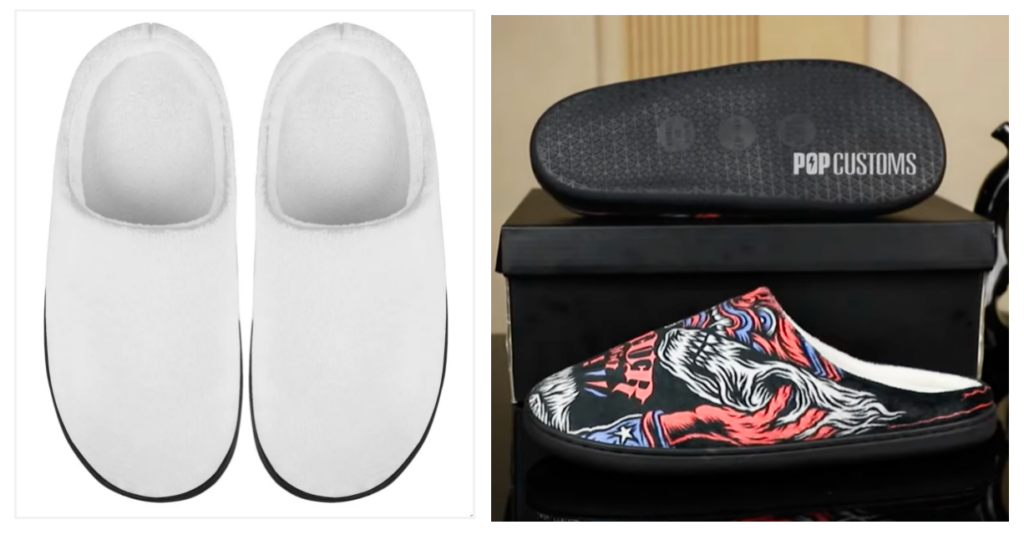
全印毛绒棉拖

48小时中国发货|促销单价:¥32.00|原价:¥36.00

黑色全印加绒洞洞鞋-批量单价可议

72小时中国发货|活动单价:¥45.00

白色全印加绒洞洞鞋-批量单价可议

72小时中国发货|活动单价:¥45.00

经典款飞织鞋

48小时中国发货|促销单价:¥54.00|原价:¥61.50

软底飞织鞋

48小时中国发货|促销单价:¥54.00|原价:¥61.40

刀锋底飞织鞋

48小时中国发货|促销单价:¥58.00|原价:¥60.30

冬季2款暖脚鞋做促销啦!48小时发货和72小时货发全球

您好,尊敬的POPCUSTOMS用户,本周众潮科技为您推出2款冬季做促销的暖脚拖鞋请查收:

全印毛绒棉拖|48小时发货

促销单价:¥36.00,原单价:¥41.00

鞋底材质:TPR,尺码范围:35~47

产品特色:非常轻便的棉拖设计,鞋底采用EVA材质,并且做防滑设计,薄且有弹性;毛绒面料保暖透气,为双足提供良好的保暖。

黑色全印加绒洞洞鞋-批量单价可议|72小时发货

活动单价:¥45.00

产品材质:EVA,尺码范围:36~48

产品特色:采用EVA材质的洞洞鞋,搭配黑色加绒内里,同时拥有传统洞洞鞋的透气舒适,又能提供秋冬季所需的保暖;材质轻盈耐用,具有良好的柔韧和回弹性能,能有效减震。

众潮科技本周新品上架通知

尊敬的客户:

您好!本周众潮科技为您上架新的产品,并且由美国工厂生产并直发,支持1件定制,1件代发,以下是产品信息,请知晓: