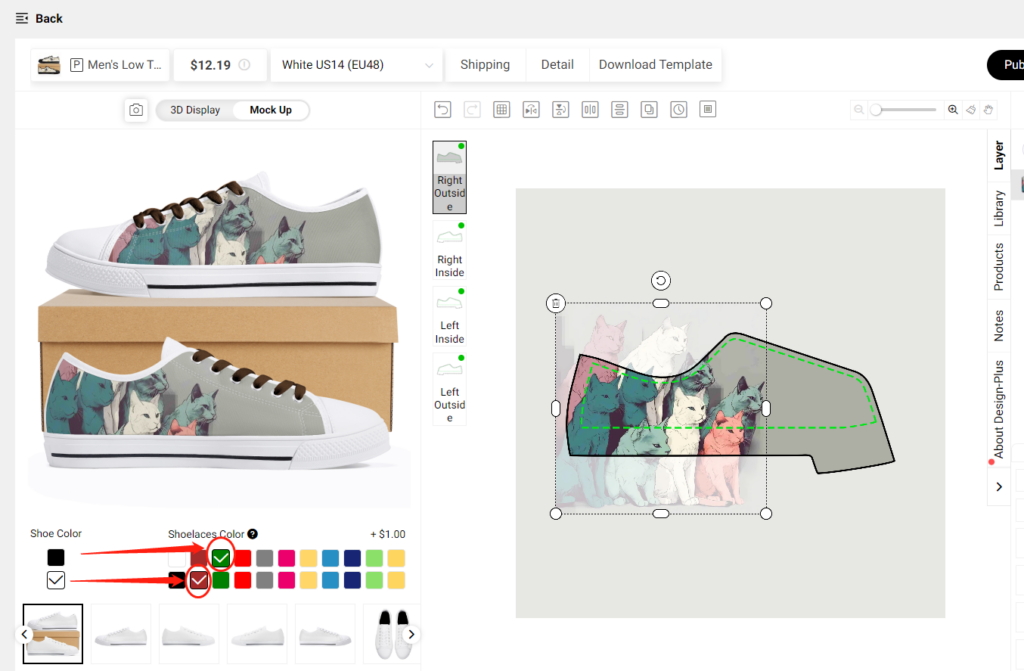
We previously provide only black and white shoelace options, now we allow sellers to add different color shoelace options for shoes under one listing.
Follow the steps below to know how to make it happen!
Step 1: Choose a shoelace color
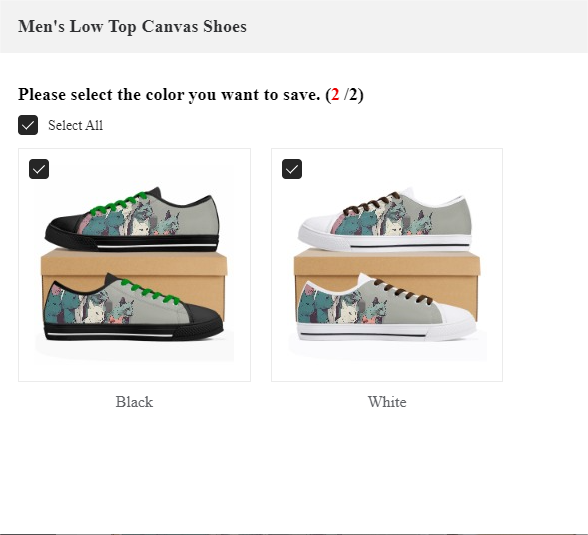
You are allowed to choose different shoelace colors for different colors of soles. For example, I choose a green shoelace for black outsole shoes and choose a red shoelace for white outsole shoes.
Click Save then you’ll see the mockup with the different color shoelaces.
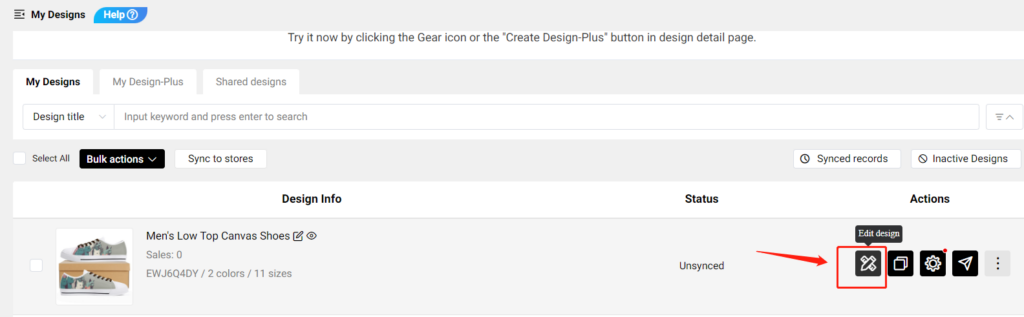
Go to My Designs to find the shoes that you saved, and click Editdesign to edit the color of the shoelace.
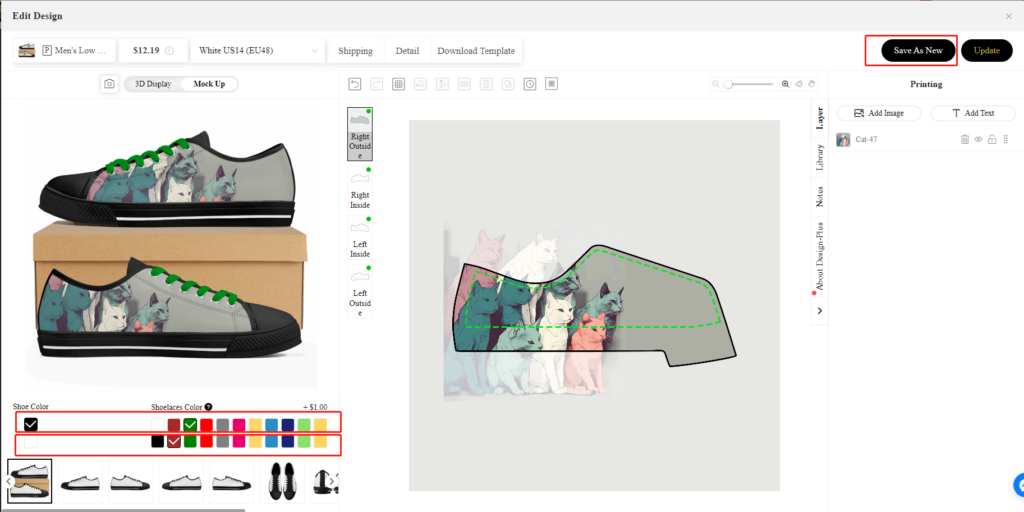
Change the color of the shoelace and click Save As New. In this way, you can create many shoes with different shoelace colors quickly and conveniently.
Step 2: Publish to your store
Combine all these shoes with different colored laces and publish them to your store, set the product’s status as Draft first so you can change the value of the variants as needed.
Click here to learn how to combine products and how to modify the color value options of your shoes.
*Note: If you have 50,000 or more variants/skus in your store, you’re subject to Shopify daily rate limit: 1,000 variants/skus per day. If you’re on the Shopify Plus plan, then the limit doesn’t apply to you. For a product, you can create up to 100 variants/skus. Click here to learn more. Please contact Shopify for more info or ask for help with the variant’s limitation.
*Your customer receives the shoes with the lace color they chose.
It’s essential to note that POPCUSTOMS currently offers a shipping rate of $0.00 for products shipped to the United States, which means the prices displayed on the website include free shipping for that region. You can also configure shipping rates for other countries and regions based on POPCUSTOMS’ shipping policies.
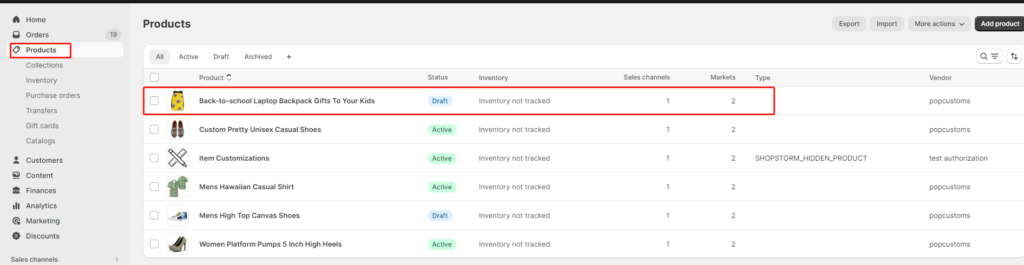
And pls kindly note that if shipping rates are not set up, there may be display issues with out of stock/sold out after product synchronization.
Here’s a guide to help you set up shipping rates for POPCUSTOMS products in your Shopify store.
Step 1: Access Shipping Settings
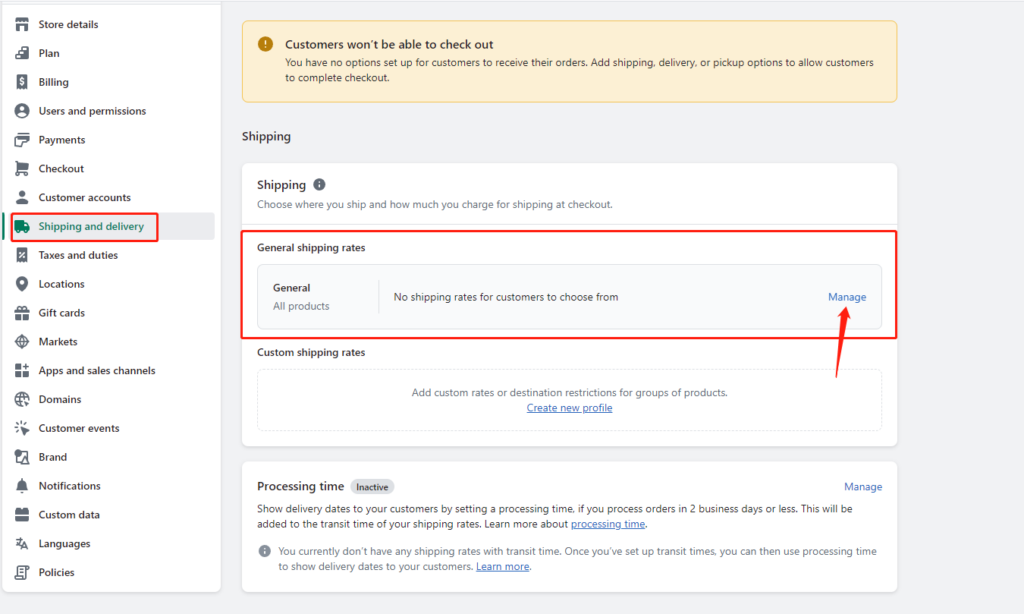
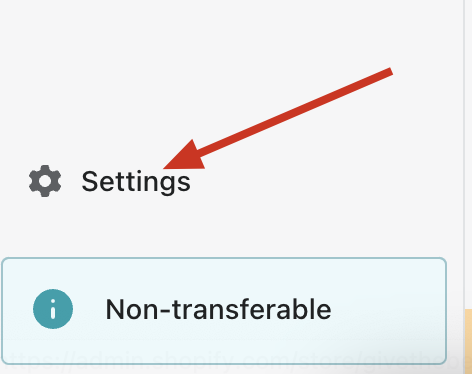
Go to your Shopify admin page. From the left-hand menu, click on the Settings option.
Then, click on Shipping and Delivery.
Shipping and delivery – General – Manage
Step 2: Create or Edit Shipping Zones
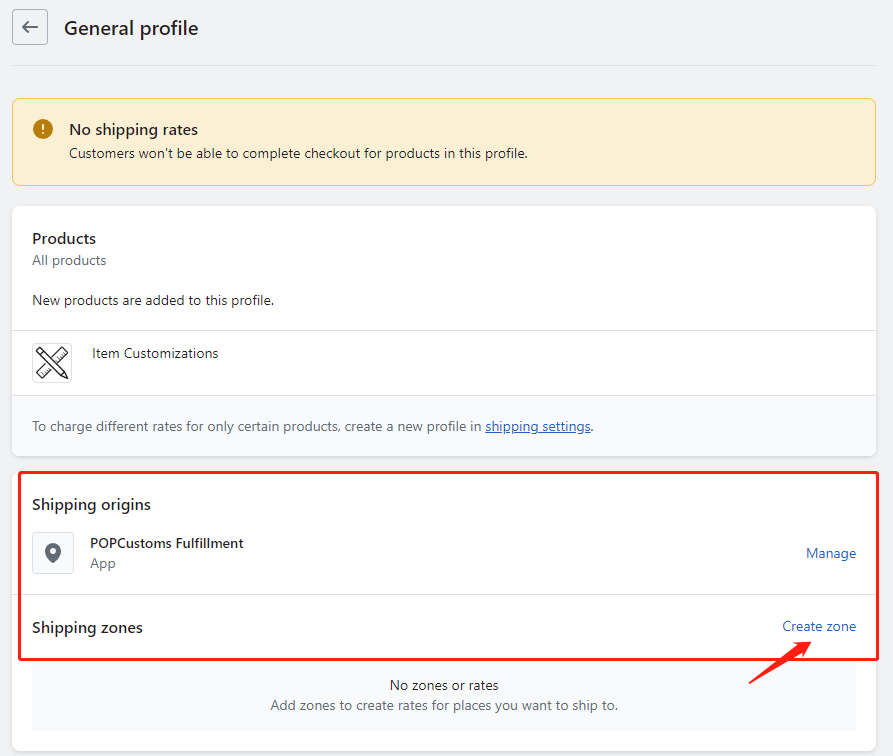
In the Shipping and Delivery page, locate the Shipping Zones section.
If you already have shipping zones created, select the one you wish to edit. If not, click the Create Shipping Zone button.
Step 3: Set Up Shipping Rates
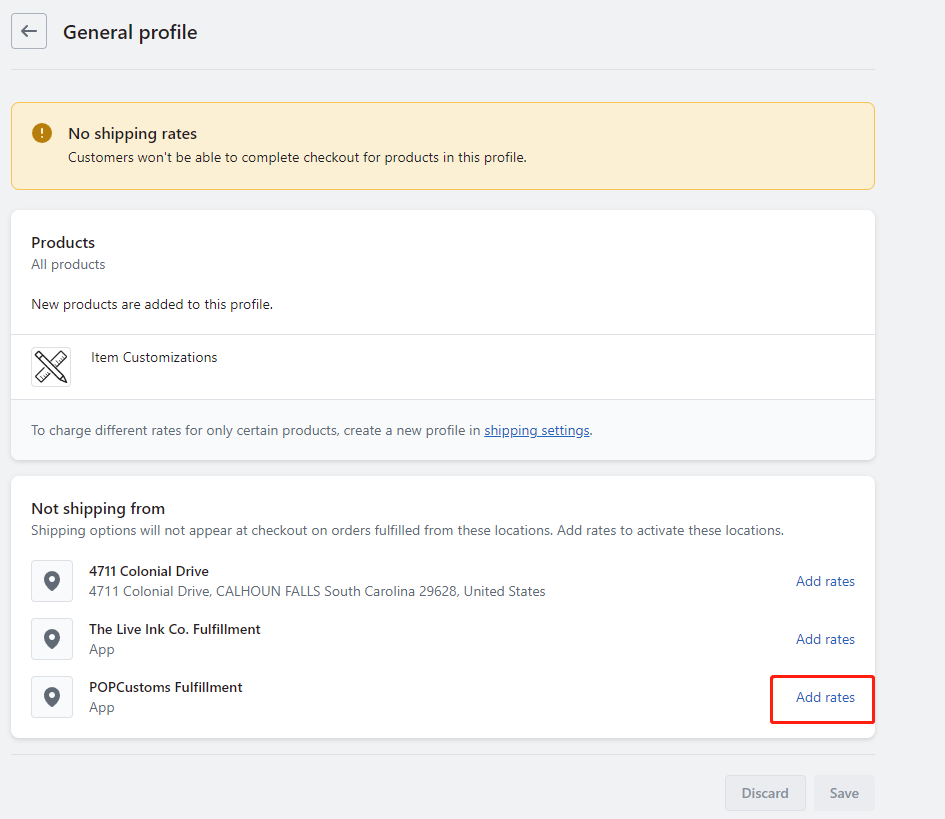
In the shipping zone area, look for the option to Add Rate.
Click on the Add Rate button.
Example Setup:
United States:
Name: Free Shipping to the U.S.
Rate: $0.00 (since POPCUSTOMS offers free shipping to the U.S.)
Mexico:
Name: Shipping to Canada
Rate: $3.00 (set according to POPCUSTOMS’ policy)
European Union:
Name: Shipping to EU
Rate: $0.00 (set according to POPCUSTOMS’ policy)
Other Regions:
Name: Shipping to Other Countries/Regions
Rate: $9.99 (set according to POPCUSTOMS’ policy)
Download POPCUSTOMS’ product shipping rates to help you set up better shipping rates!
Step 4: Save Changes
After confirming all your shipping rate settings, don’t forget to click the Save button in the upper right corner to save your changes.
Step 5: Test Shipping Calculation
Once you’ve completed the setup, it’s a good idea to conduct a test:
Simulate a purchase in your Shopify store.
Add a POPCUSTOMS product to your cart and proceed to the checkout page.
Double-check that the shipping rates display correctly based on the selected region.
Step 6: Sync with POPCUSTOMS
Make sure you sync your product information and shipping rates with POPCUSTOMS to avoid any discrepancies:
Log in to your POPCUSTOMS account.
Ensure that your shipping-related settings are updated in your Shopify product sync records.
POPCUSTOMS Shipping Zone Information
For more details about POPCUSTOMS shipping zones, please visit this link: POPCUSTOMS Shipping Zone.
Please feel free to contact us at business@popcustoms.com if you need any assistance.
Generally, when you publish our products to your Shopify store, the color values will be the base color of the product template rather than the color of your designs.
If you combine different designs of the same product and want to change the color options of the products shown on your storefront, please follow the steps below.
Publish combined products to your store first but set it Inactive. Since Shopify allows sellers to create up to 100 variants for a product, we suggest you check the variants of products before you combine and publish them. For shoes, we suggest you combine at most 4 of them.
Learn more about the variants’ limitations on Shopify here.
Step 2: Modification color value on Shopify
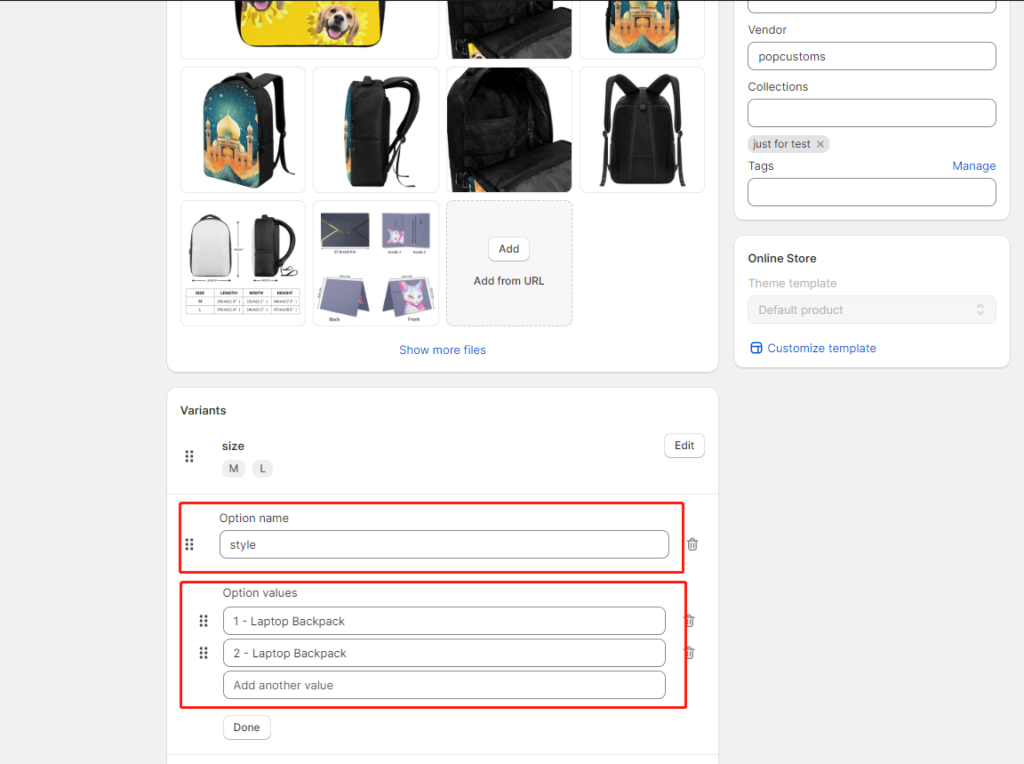
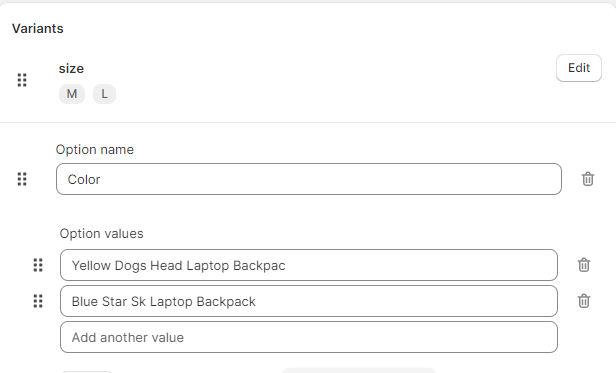
Log in to your Shopify admin, click Products to find the combined product, and click it to modify the Option name and Option values of the product.
For example, I change those two values mentioned above as below,
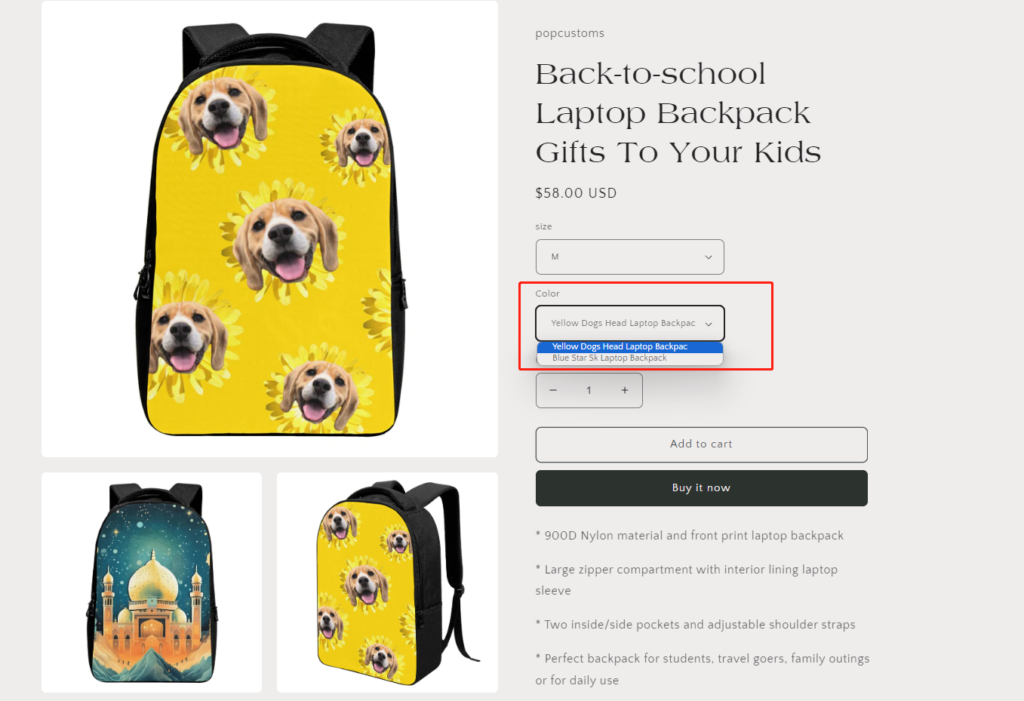
And then save the changes, set the product’s status to Active. That’s what it looks like on your storefront.
Nope. You’ll see the final discounted price for all items upon adding them to your cart. You can also contact us at warehouse@popcustoms to get more discounts if you have a very large order.
If you have an order placed from your Shopify store, but this order didn’t sync to our site successfully, please follow the steps below to solve this problem.
Step 1: Change order status settings
Step 2: Export orders
Step 3: Import orders
Step 1: Change order status settings
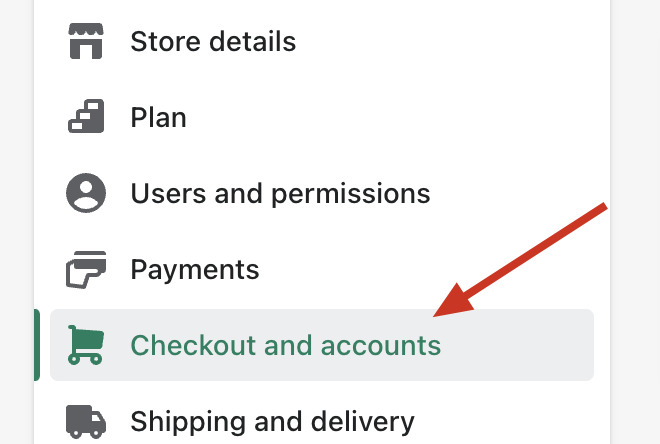
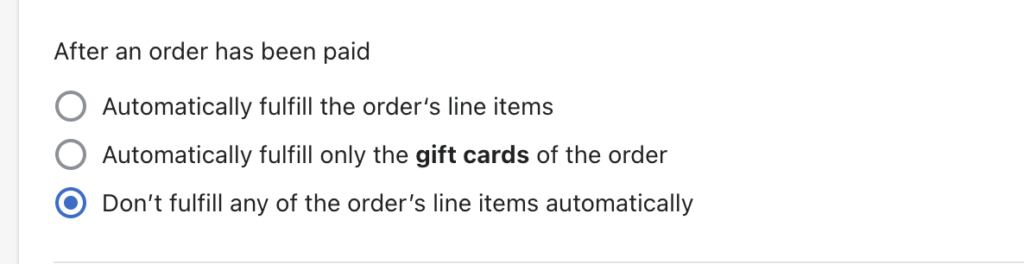
Log in to your Shopify admin account, go to Settings -> Checkout and accounts, and change the status after an order has been paid to “Don’t fulfill any of the order’s line items automatically“. Then your future orders can automatically sync to our site to fulfilled successfully.
*Noted: If you have installed Printful App to use simultaneously, you should change the setting to “Automatically fulfill the order’s line items” instead.
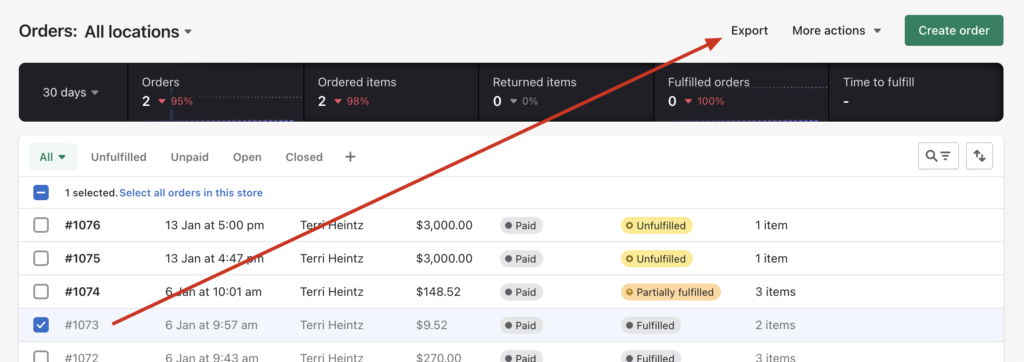
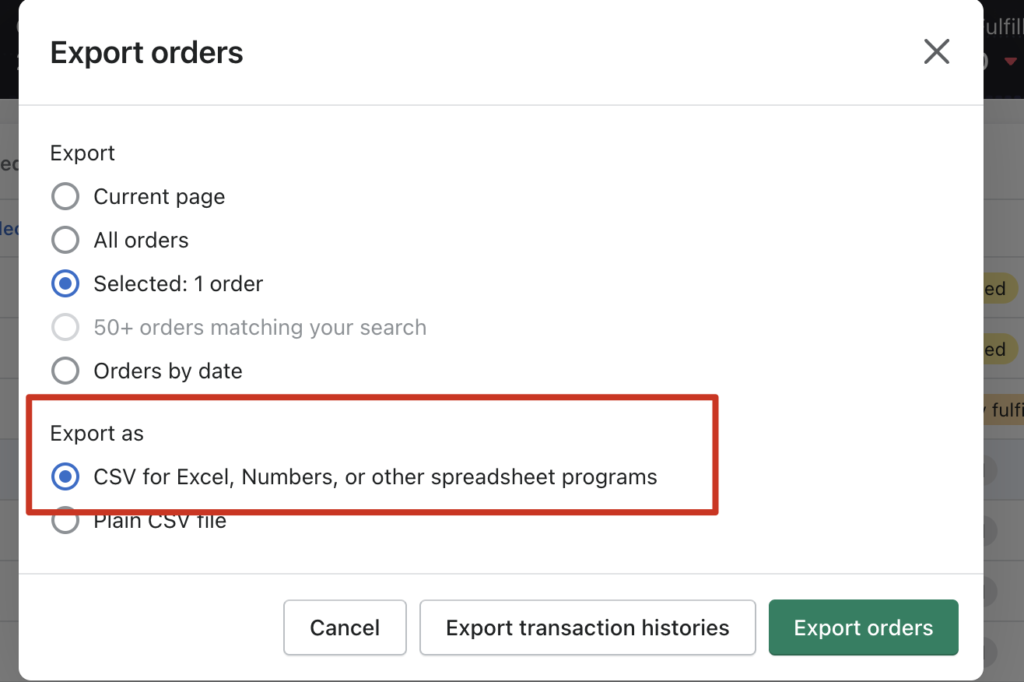
Step 2: Export orders
Regarding the order that has failed to sync, you need to export it and import it to our site manually so we can fulfill and ship it to your customers.
Step 3:Import orders
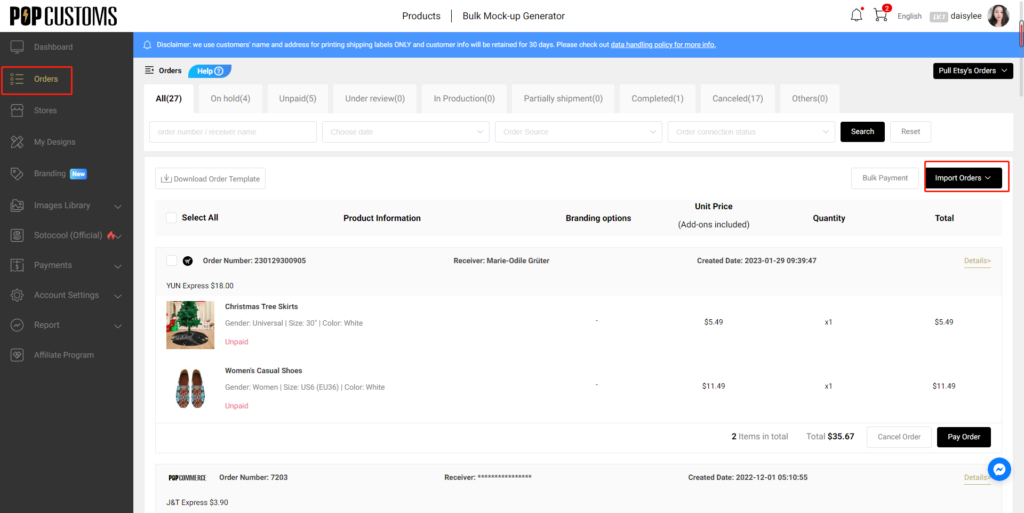
After exporting your order from your store, please go to our site to import it.
After you import it to our site, we can successfully fulfill and ship this order to your customers!
One important thing to know:
If you have an order which includes both POPCUSTOMS and Printful items, Shopify sync items to your different suppliers to fulfill and ship. When we all ship the items and update the tracking numbers to your store, the earlier tracking number will be overwritten by the later one because one order on Shopify can only has one tracking number, please kindly noted.
Usually, you have to pay storage fees and handling fees. However, we don’t charge an additional surcharge except for the product and shipping costs to support your brand business.
The design and setup procedures at popcustoms are not different than shopify/woocommerce. You’ll be more concerned about how customers can customize and place orders.
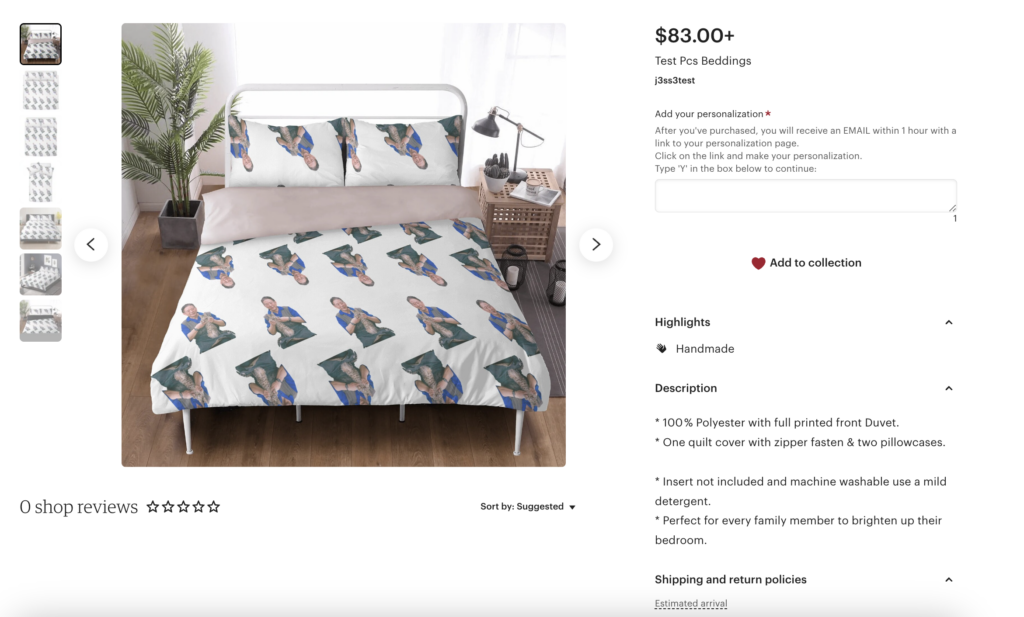
The screenshot below is how design-plus looks like in your Etsy storefront once published. As you can see, the Etsy personalization setting is nabled.
How To Order And Customize?
Your customers need to choose the attributes (size, color, etc.) and quantity they want to buy, type ‘Y’ in the personalization box, add to cart and checkout.
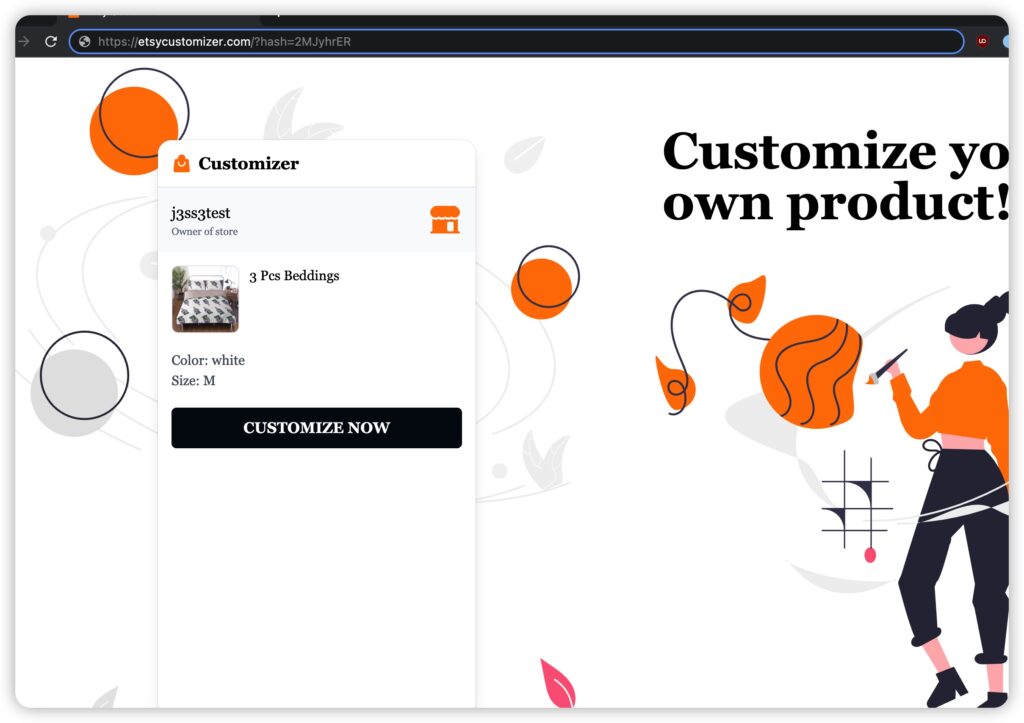
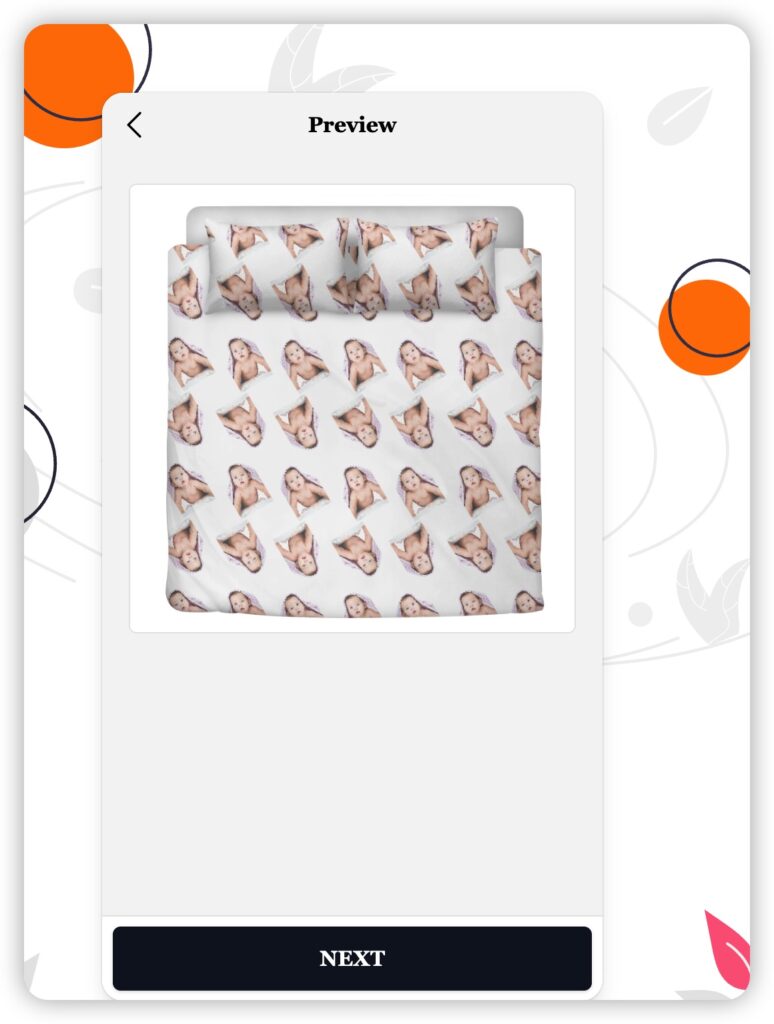
After they’ve purchased, the order will be synced to your POPCUSTOMS account. And they will receive an email within 1 hour with a link to the personalization page. They need to click on the link to personalize.
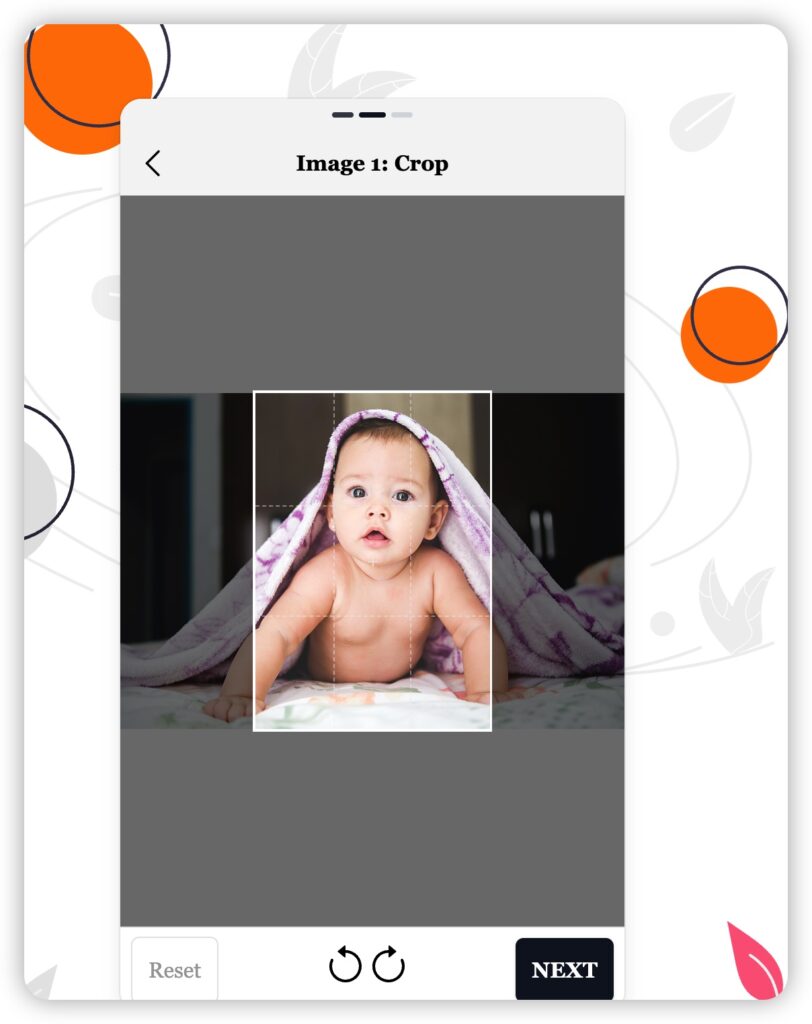
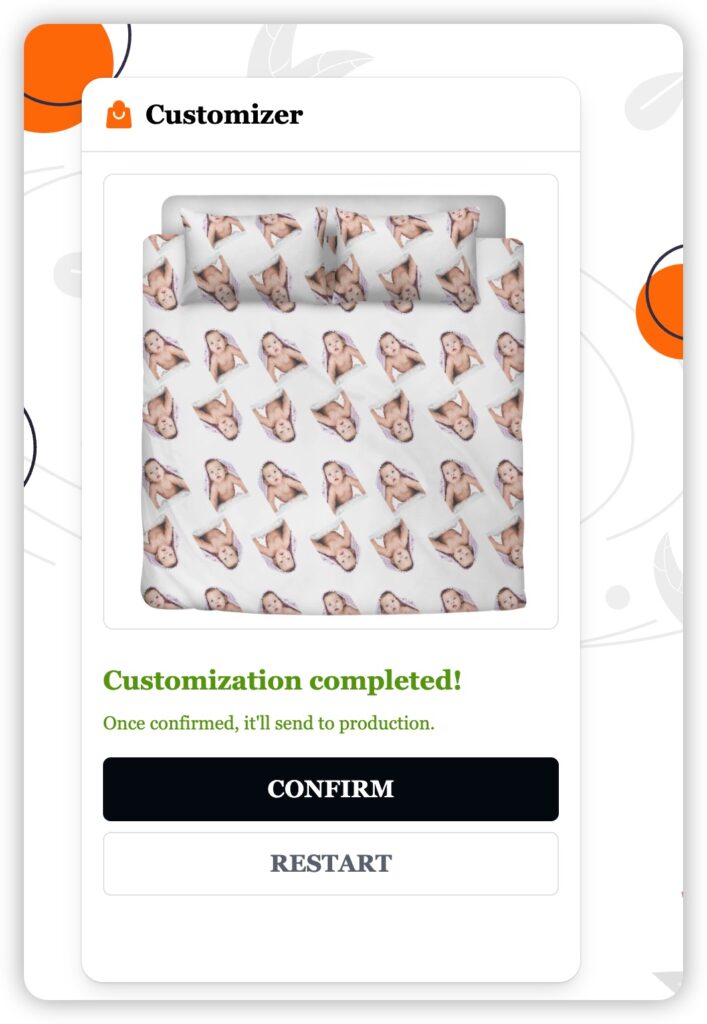
personalization pagecropping imagepreviewconfirm
If they are satisfied with the preview, after they confirm, the design of the order on your POPCUSTOMS account will be replaced to their personalization design. At the same time, you will receive an email reminding you to pay for the order, after which we will start production and ship the product to your customers as soon as possible!
How to Design and Setup Design-Plus
First of all, you will have to plan the design to decide which parts are open for personalization by customers. There are two design styles recommended: ①Replace Heads ②Replace Objects
How to Configure ‘Replace Heads’ Products and Sync to Your Etsy Store?
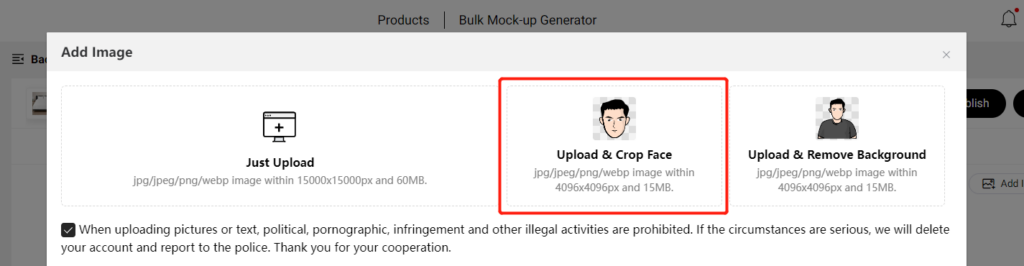
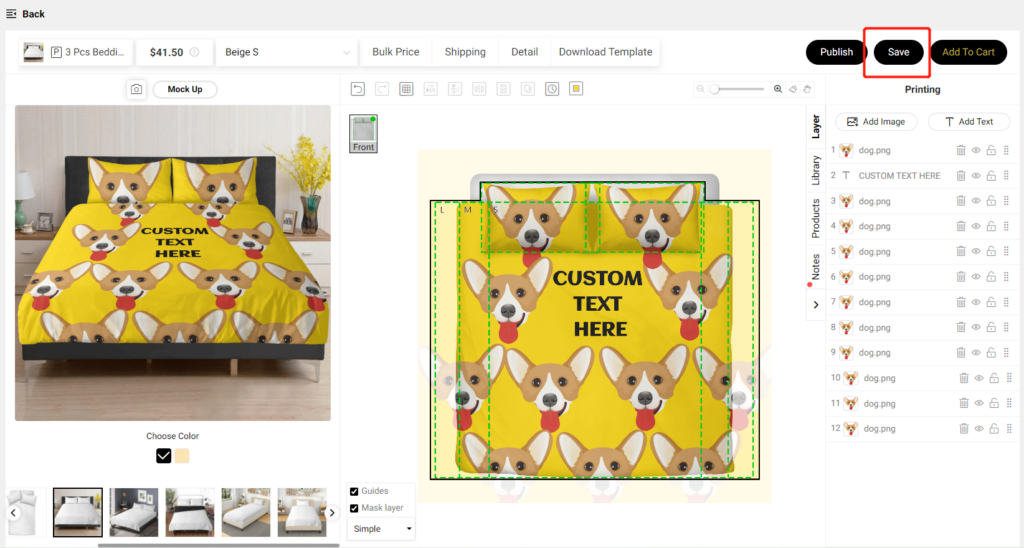
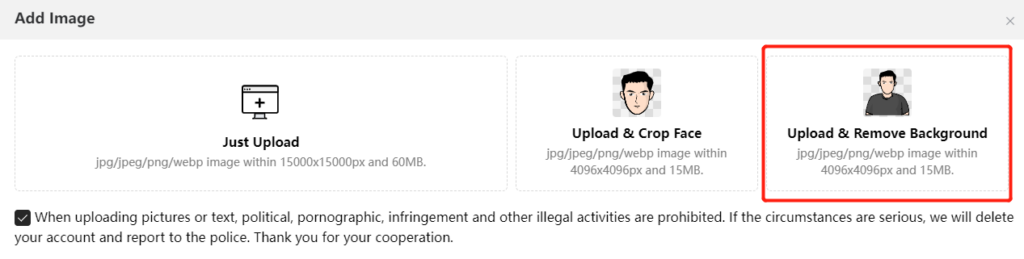
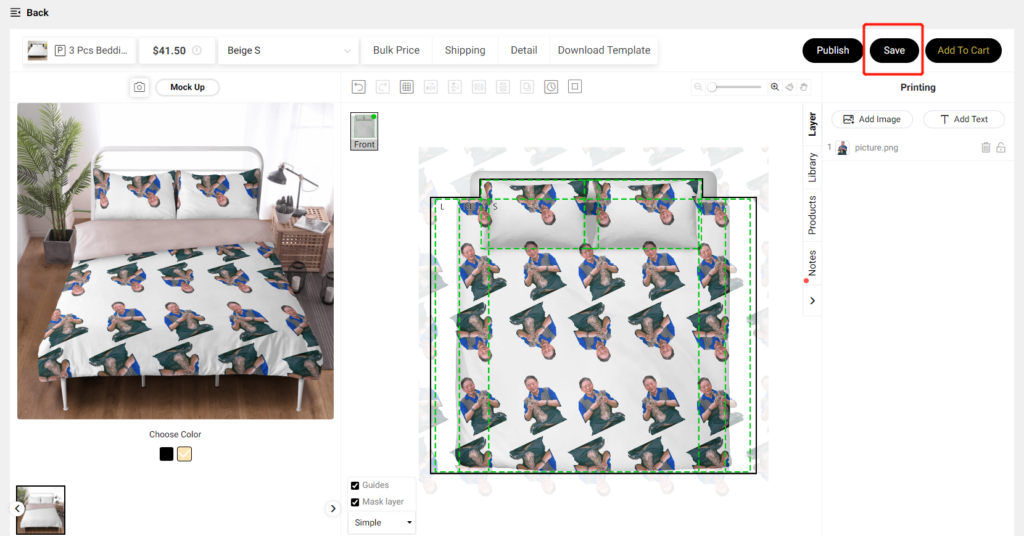
Select a product you want to design, click ‘Upload & Crop Face‘ to upload images and save your design after you complete it.
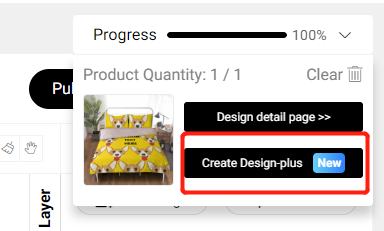
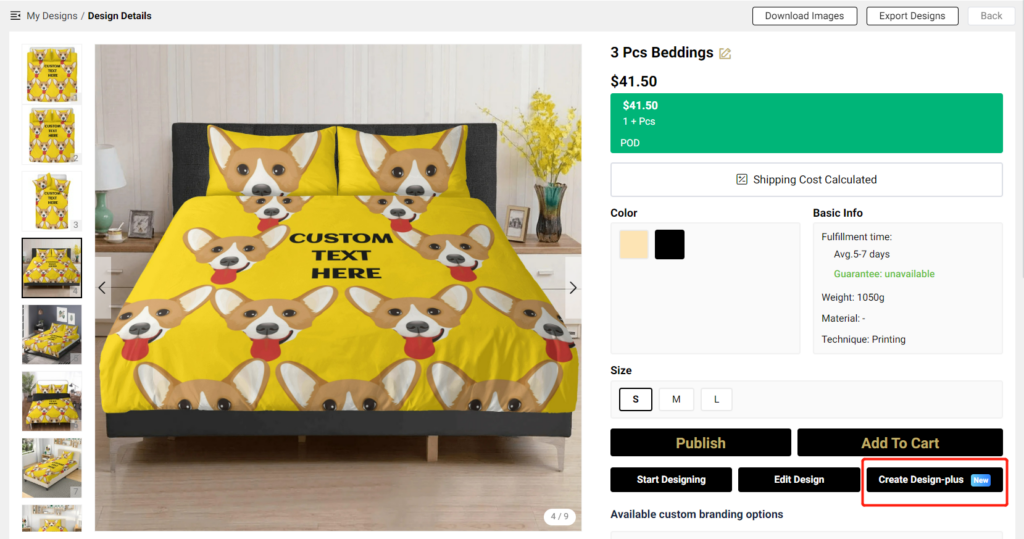
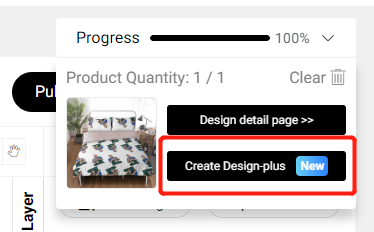
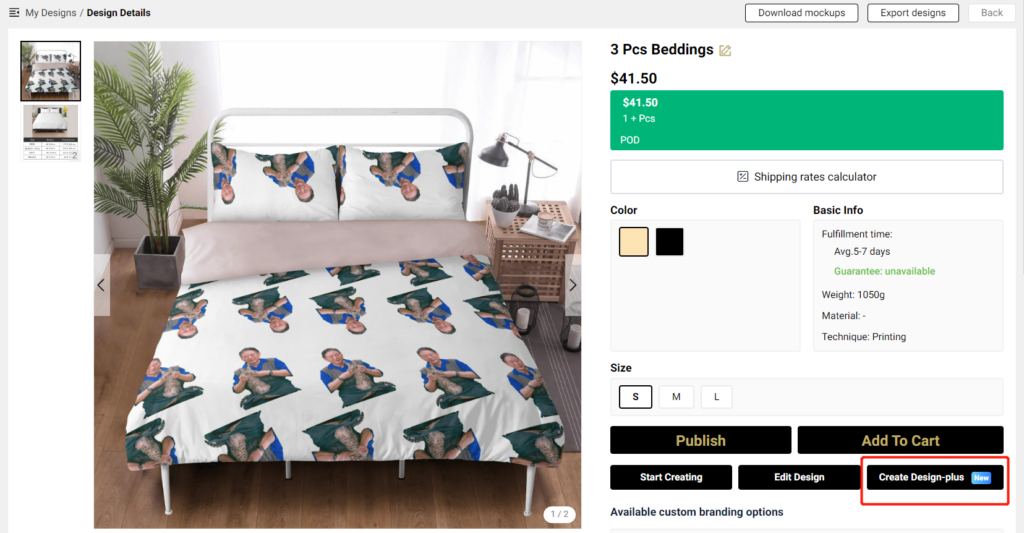
Click ‘Create Design-plus‘ on the design page, or go to ‘My designs‘ – ‘Design details‘ page, and click ‘Create Design-plus‘ to start configuration.
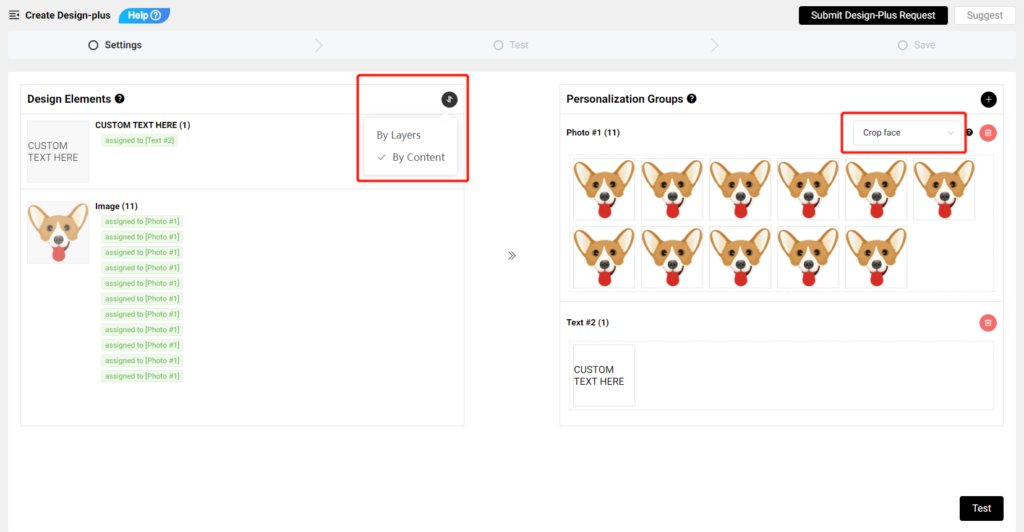
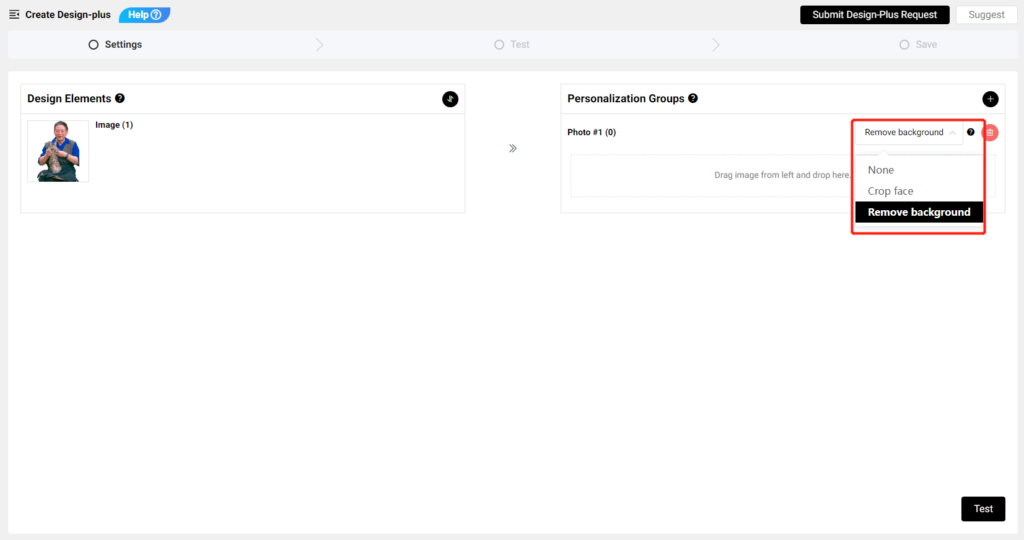
Drag and drop images or texts from the left to the right to configure personalization areas. Dragging them to the right and placing them on the same row means that they will be replaced by the same image uploaded by your customers.
* On the left, you can choose to sort your design elements By Layer or By Content.
* Choose ‘Crop face’ to make sure the image uploaded by your customers will be automatically cropped to fit the design area perfectly.
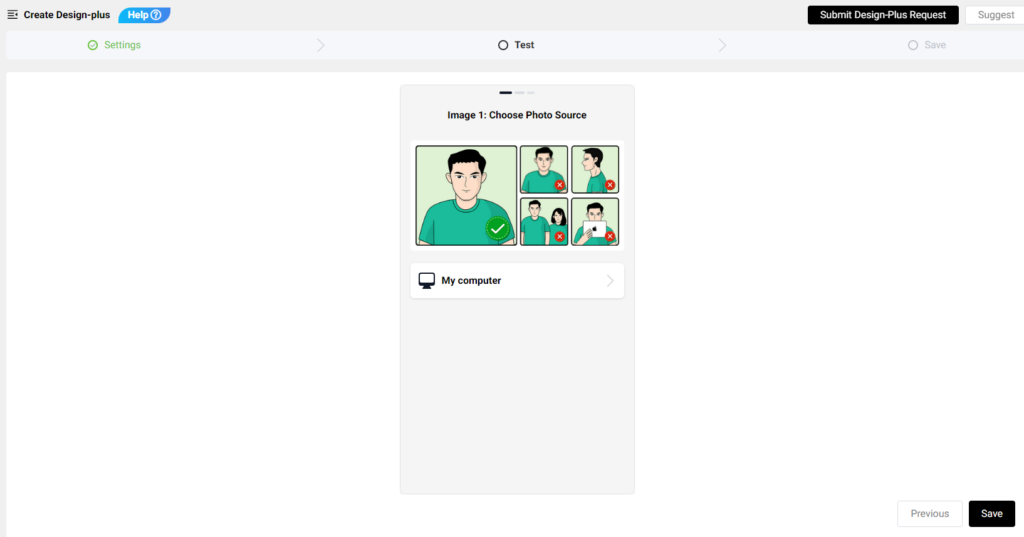
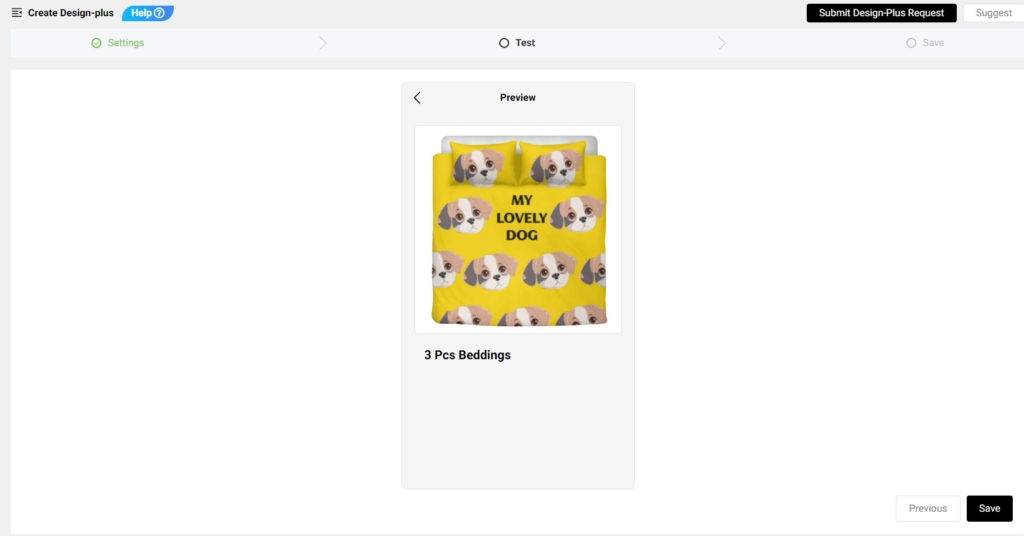
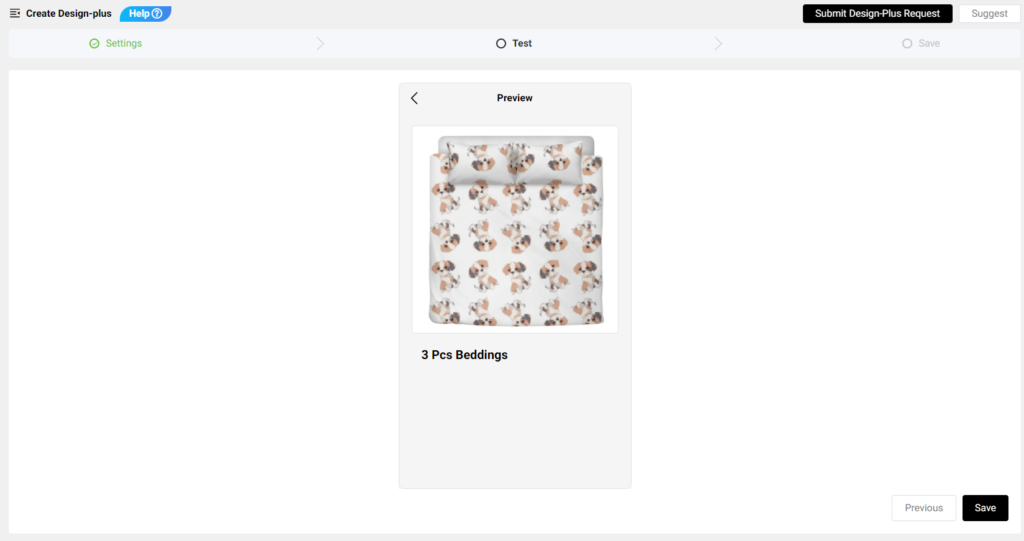
Upload a picture to test if the configuration result meets your need. Save it if you are satisfied with the test result.
Publish it to your Etsy store, turn on the ‘Personalization’ button, and set it active for your customers to personalize.
How to Configure ‘Replace Object‘ Productsand Sync to Your Etsy Store?
Select a product you want to design, click ‘Upload & Remove Background‘ to upload images and save your design after you complete it.
Click ‘Create Design-plus‘ on the design page, or go to ‘My designs‘ – ‘Design details‘ page, and click ‘Create Design-plus‘ to start configuration.
Drag and drop images or texts from the left to the right to configure personalization areas. Dragging them to the right and placing them on the same row means that they will be replaced by the same image uploaded by your customers.
* On the left, you can choose to sort your design elements By Layer or By Content.
* Choose ‘Remove background’ to make sure the background of the image uploaded by your customers will be automatically removed to fit the design area perfectly.
Upload a photo to test if the configuration result meets your need. Save it if you are satisfied with the test result.
Publish it to your Etsy store, turn on the ‘Personalization’ button, and set it active for your customers to personalize.